RNC Fintax: user manual
This manual shows, screen by screen, how to use the trader accounting portal. Use the search box to jump to any topic, or pick a section on the left (on a phone, open Contents).
The portal keeps the books of onion traders for a CA firm. A trader's day works like this:
- A farmer arrives. The trader user records a purchase challan (CHN): one arrival is one lot and one challan. This puts the lot into stock.
- The trader admin approves the challan. Approval prepares the accounting entry (and the advance, if one was paid).
- The goods are sold. The trader user makes a sale invoice (INV) to a buyer, taking stock from one or more challans.
- The trader admin approves the invoice.
- The CA administrator posts the entries to the books. Only then do they appear in the ledgers, profit and loss and balance sheet.
Who does what
| Role | Main work |
|---|---|
| Trader user | Records challans and invoices, sends a voice note or a photo of a paper bill, looks at stock and what is receivable or payable. Mostly on a phone. |
| Trader admin | Everything a trader user does, plus approves challans and invoices, adds farmers and buyers, uploads parties in bulk. |
| CA maker | Reviews voice and photo captures and confirms the figures. Reads Trading but cannot approve or post. |
| CA administrator | Posts entries to the books (one by one or in bulk), sees every trader, keeps the chart of accounts and posting rules, creates traders and logins. |
Each person sees only their own screens. A trader never sees another trader's records.
Sign in, install on a phone, sign out
Open rncfintax.com and press Client login (or go straight to rncfintax.com/app/). Type the Login ID and password your administrator gave you and press Sign in securely.
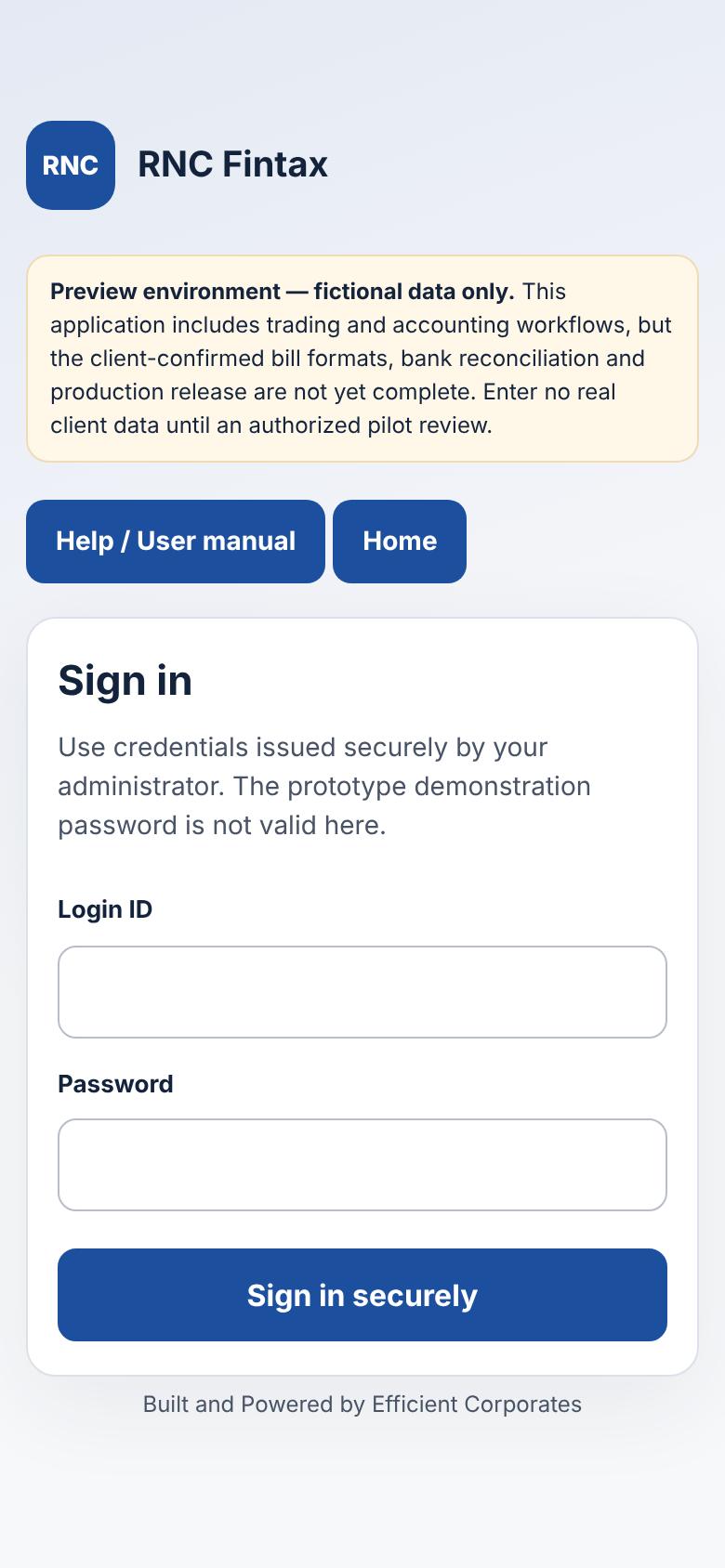
Put it on your phone like an app
- Android (Chrome): press Install the app on the sign-in page, or open the Chrome menu and choose Install app.
- iPhone (Safari): tap Share, then Add to Home Screen.
Staying safe
- Keep your password to yourself. The CA administrator can issue a new one (Traders and users); there is no self-service reset yet.
- Administration → My access shows where you are signed in and lets you sign out of other devices.
- Always press Sign out on a shared phone or computer.
Finding your way around the screens
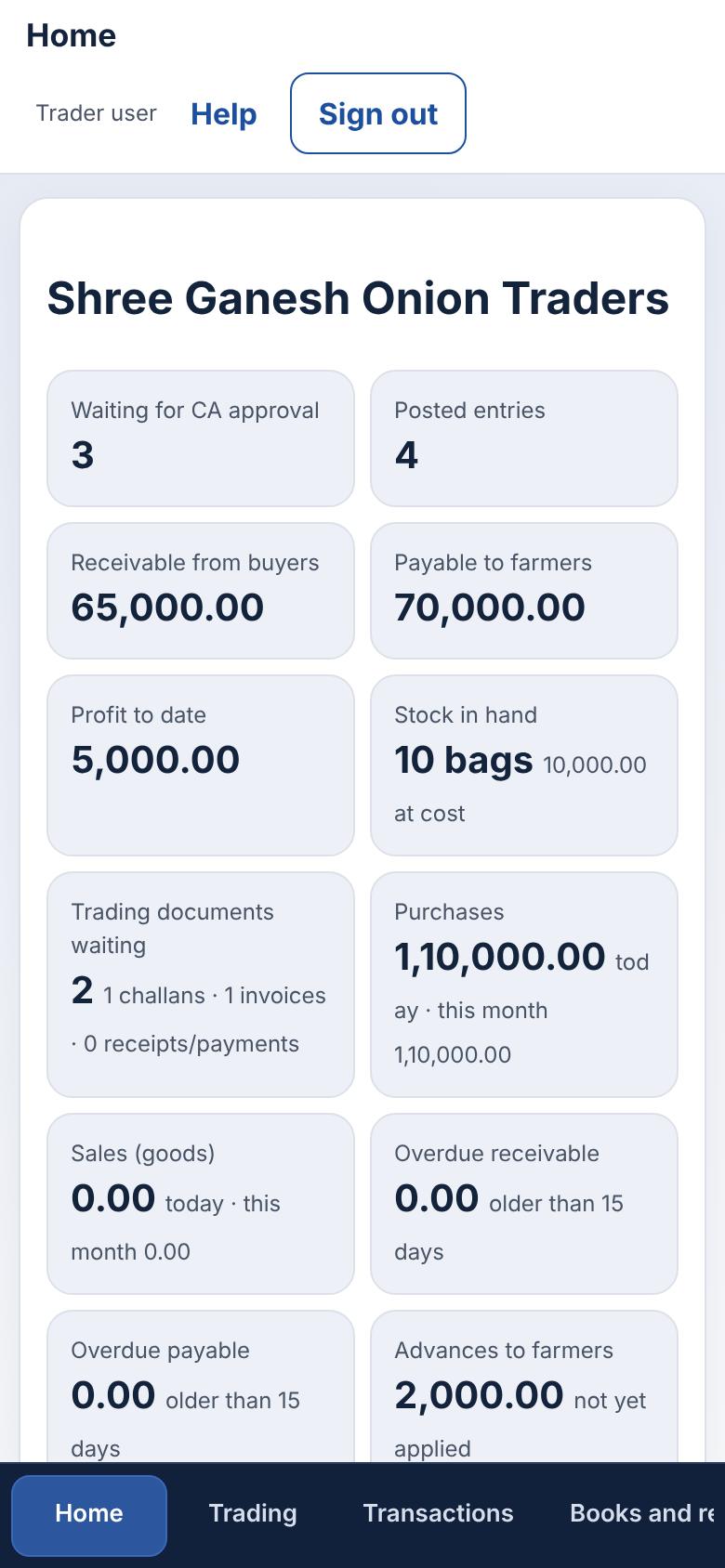
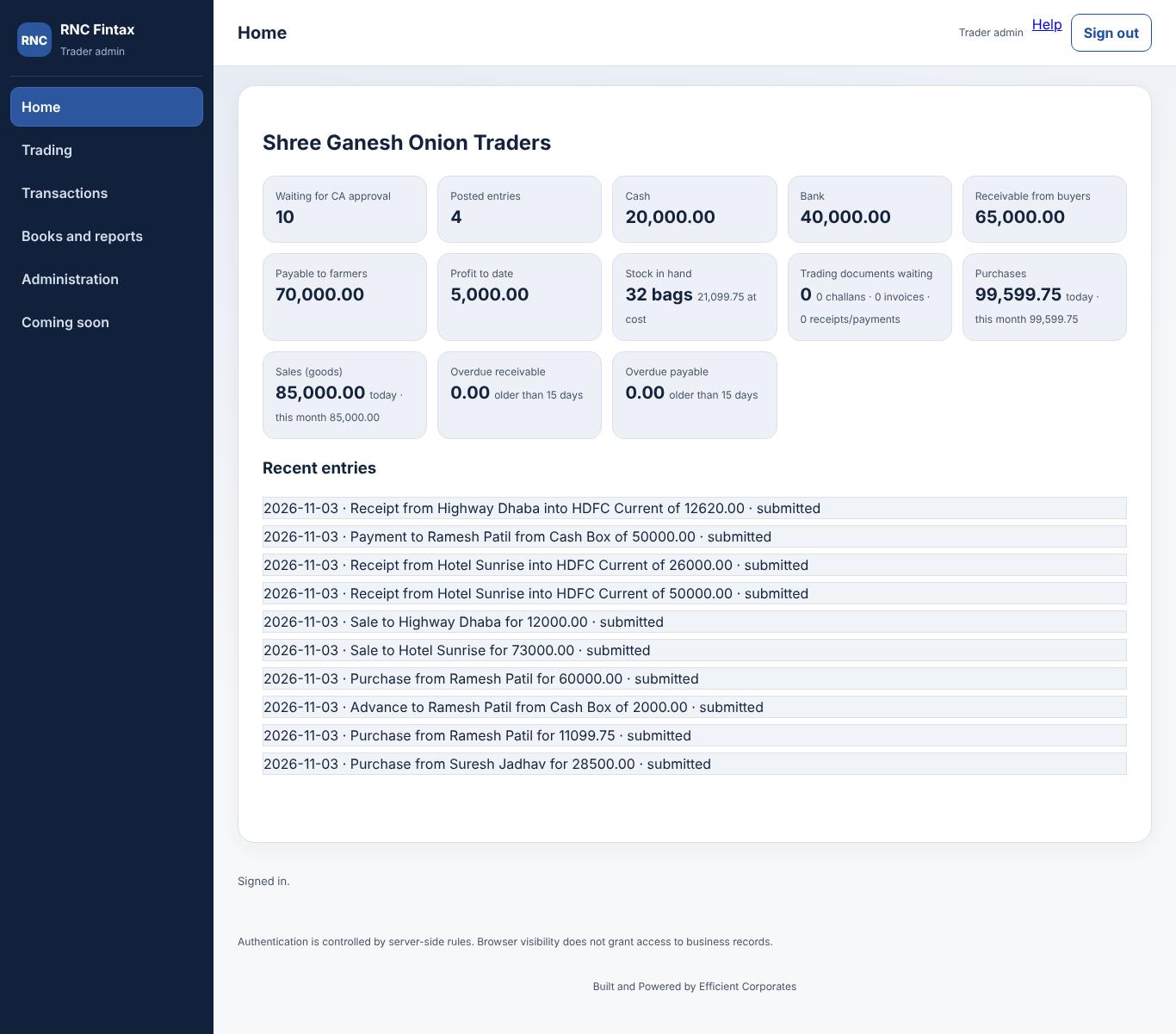
On a phone the menu is the bar at the bottom of the screen; on a computer it is the dark panel on the left. Under the title, small tabs switch between the parts of a section (for example Purchase challans, Sale invoices, Stock).
| Menu | Who sees it | What it is for |
|---|---|---|
| Home | Everyone | Summary cards and recent entries. |
| Trading | Trader user, trader admin, CA (CA maker reads only) | Purchase challans, sale invoices, stock, receivable and payable. |
| Transactions | Trader user, trader admin | Send a voice note or photo; enter and track other entries. |
| Approvals | CA administrator, CA maker | Review captures; approve entries and see the journal (administrator only). |
| Books and reports | Trader user, trader admin, CA administrator | Party ledger, cash book, bank book, trial balance, profit and loss, balance sheet. |
| Administration | Everyone (tabs differ by role) | My access, parties and rates, bulk upload, exports; for the CA also traders, chart of accounts, event master, CA staff, onboarding, bug reports. |
| Coming soon | Everyone | What is live and what is planned next. |
The CA administrator first chooses a trader at the top (search by code or name, then pick from the list). Screens marked "Choose a trader at the top right" stay empty until a trader is chosen.
Record a farmer's arrival: purchase challan (CHN)
When a farmer's tractor arrives, make one challan for that arrival. One arrival is one lot and one challan. Open Trading → Purchase challans.
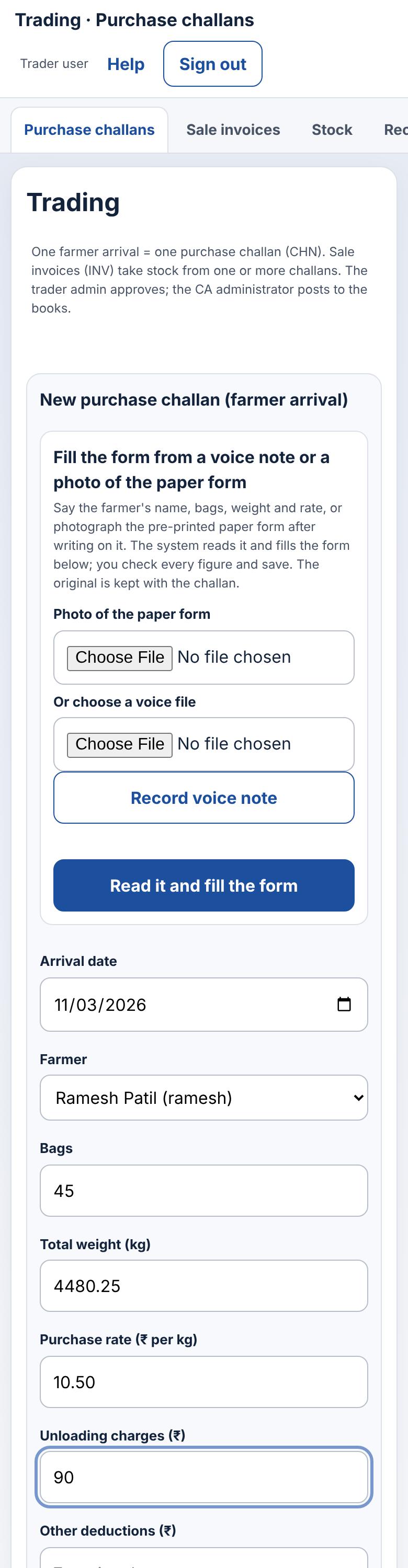
Fill in
| Field | What to enter |
|---|---|
| Arrival date | Today by default. |
| Farmer | Choose from the list. Only existing farmers appear; a new farmer is added by the trader admin or the CA (Parties and rates). No bank details are kept for farmers. |
| Bags | Number of bags in this arrival. |
| Total weight (kg) | Total weight of the whole lot, up to 3 decimals (for example 6000 or 1950.5). |
| Purchase rate (₹ per kg) | The price per kilo agreed with the farmer. |
| Unloading charges (₹) | Optional. Deducted from what the farmer is paid. |
| Other deductions (₹) | Optional. |
| Advance paid now (₹) and Paid from | Only if you paid the farmer something at arrival (for example for transport). Choose the cash box or bank it was paid from. The advance is a separate entry in the books. |
| Entered from | Typed in this form, from a paper form (photo), or from a voice note. Just a label for later. |
| Note | Optional, for example the vehicle number. |
Press Save challan. You get a number such as CHN/2026-27/000001, and the lot is in stock at once.
After saving

A challan you saved shows Waiting for trader admin. You cannot approve your own. When the trader admin approves, it becomes Approved; the line Left in stock shows what has not yet been sold. If the trader admin saves a challan, it is approved at once. See What the statuses mean.
Press PDF on a challan to open a printable copy.
Sell the goods: sale invoice (INV)
One invoice goes to one buyer and can take stock from several challans, including challans of different farmers. Open Trading → Sale invoices.

- Choose the Buyer. Only existing buyers appear. A new buyer is added by the trader admin or the CA.
- Under Stock from farmer, choose a farmer. His challans that still have stock appear as buttons showing the quantity left. Press a button to add that challan to the invoice. Repeat with other farmers to add more lots.
- Each added challan becomes one line. Bags, weight and sale rate are filled in from the challan. Change them if you sell only part of the lot or at a different rate. Press Remove to take a line out.
- Check the Commission % (5 by default) and the Loading ₹ per bag (2 by default). Add Freight and Other charges if you are charging them.
- The totals update as you type. Press Save invoice.
The invoice gets a number such as INV/2026-27/000001 and is a Bill of Supply: no GST is charged. You can sell less than a challan holds: the rest stays in stock and can go on another invoice.
An invoice cannot take more than what is left on a challan, and only approved challans can be sold. If you see TRADE_STOCK_EXCEEDED, the quantity is more than is left; TRADE_CHALLAN_NOT_AVAILABLE means the challan is not approved yet.

See the worked figures in A worked example.
Stock: what is left, lot by lot
Open Trading → Stock. Every lot that still has bags is listed with its challan number and the farmer it came from, so you always know whose goods are unsold.
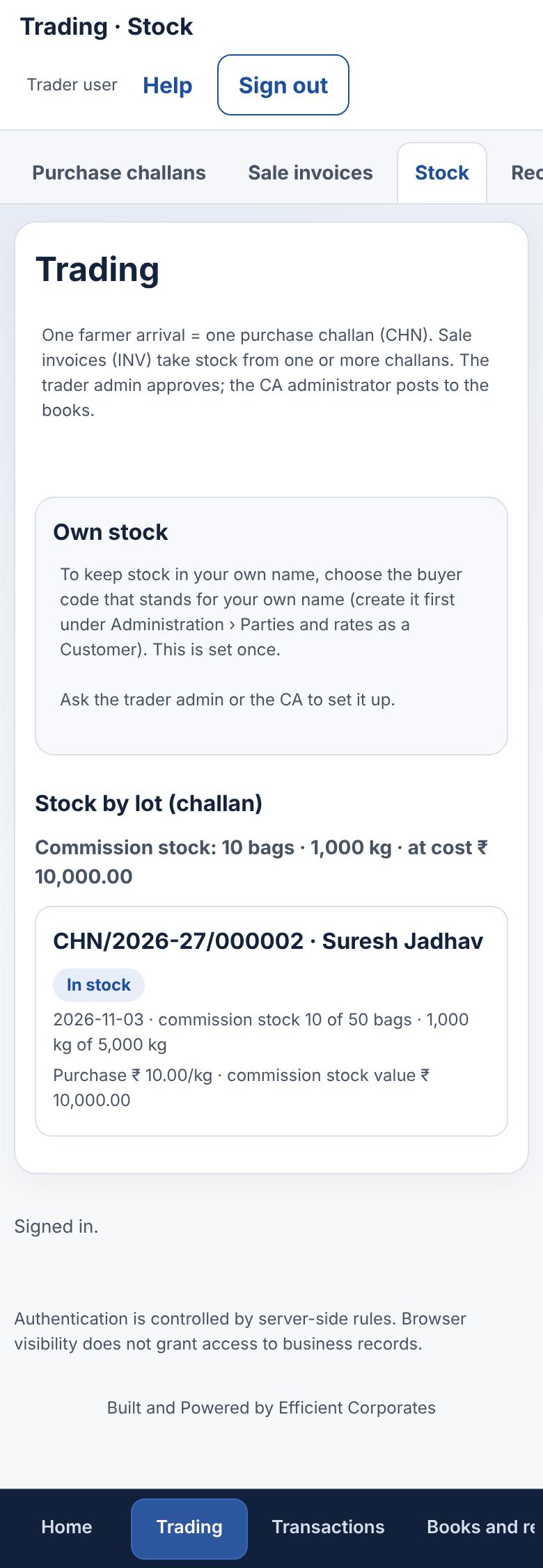
- left 10 of 50 bags means 40 bags are already on invoices.
- The value is the quantity left at the challan's purchase rate.
- A lot disappears from this list once all its bags are on invoices.
Receivable and payable, by invoice and challan
Open Trading → Receivable and payable.
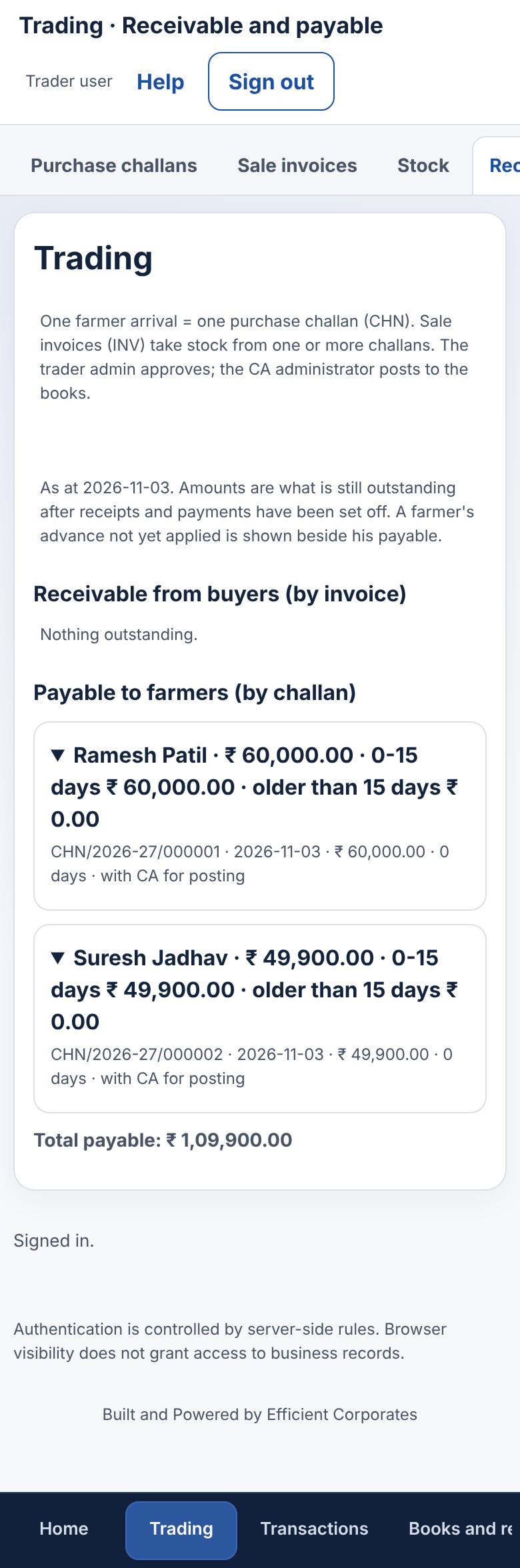
- Receivable from buyers lists each buyer, then each of his invoices.
- Payable to farmers lists each farmer, then each of his challans.
- Tap a name to open it. Each document shows its date, amount and age in days. Amounts are grouped as 0-15 days and older than 15 days.
- The small label at the end of a line says whether the entry is still with the CA for posting or already posted in the books.
Send a voice note or a photo of the paper bill
If you have no time to type, send what you have. Open Transactions → Send voice / photo.
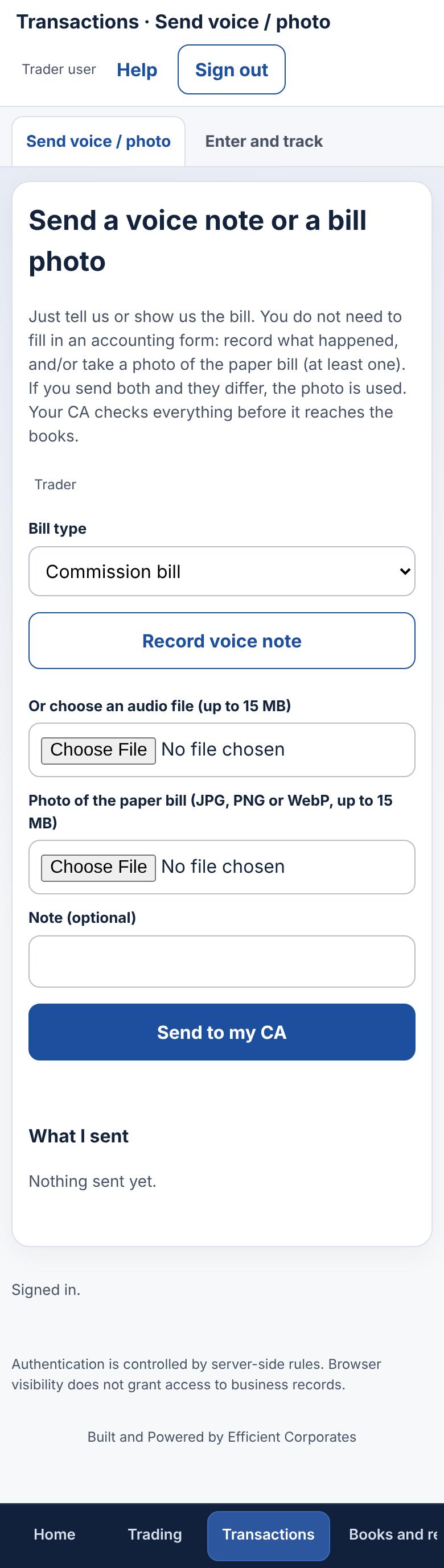
- Choose the Bill type (Commission bill is the default).
- Press Record voice note and speak (or choose an audio file), and/or take a photo of the paper bill. At least one is needed. If the photo and the voice disagree, the photo is used.
- Press Send to my CA.
The system reads the voice and photo and prepares a draft. It never posts anything by itself. The CA checks the draft against your voice and photo and confirms the figures. The list on the same screen shows where each capture stands (received, drafted, sent for CA approval or returned).
Challans can also be filled from a voice note or a photo of the pre-printed paper form, straight on the Trading screen: see Fill a challan from a voice note or photo.
Enter and track other entries
Transactions → Enter and track is for entries other than challans and invoices, such as a receipt from a buyer, a payment to a farmer, or labour paid in cash.
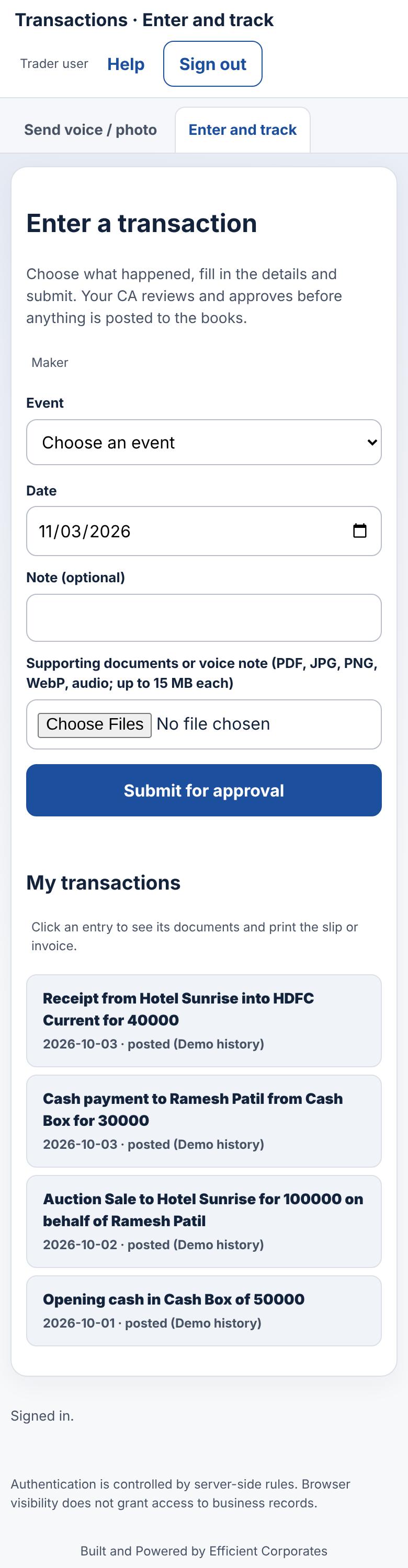
- Choose the Event (for example Receipt into bank) and fill in the parties and amount.
- You may attach a supporting document (PDF, image or audio, up to 15 MB).
- Press Submit for approval. The list below shows your entries and whether each is waiting, posted, rejected or reversed.
A posted entry is never changed. If something was wrong, the CA administrator reverses it and a corrected entry is made.
Fill a challan from a voice note or photo, and save it offline
On Trading → Purchase challans, the box at the top of the form lets you skip typing. Say the farmer's name, bags, weight and rate, or photograph the pre-printed paper form after writing on it, and press Read it and fill the form.

- Choose a photo or a voice file, or press Record voice note. If you give both, the photo wins.
- Press Read it and fill the form. The farmer is suggested from your farmer list; the figures are filled in.
- Check every figure. Fields highlighted yellow and marked check this were unclear. The line at the bottom shows the goods value and what is payable to the farmer, worked out exactly.
- Press save. The original photo or voice note is kept with the challan so the trader admin and the CA can compare.
On the demonstration build the reading is a labelled sample (nothing is read from your file). On the live system a Cloudflare AI service reads it, and real client photos go to it only after the client has consented.
No network? Save it on the phone
If the signal is poor, fill the form and save as usual. The challan is kept on your phone as a draft and listed under the form. When the connection returns it is sent by itself and gets its CHN number then.
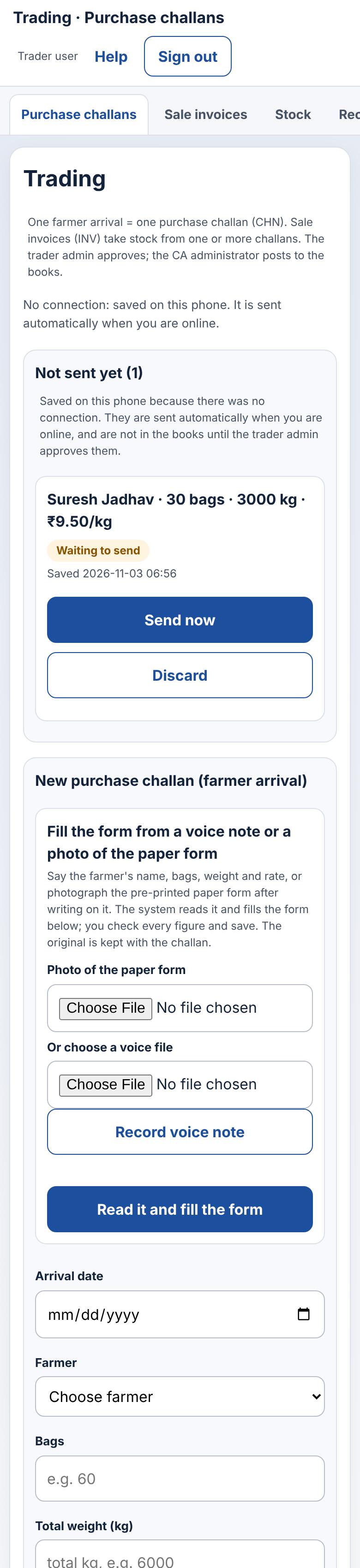
A draft that is still on the phone is not yet a challan: it has no number and no stock. Keep the phone and the app until it shows as sent.
Approve challans and invoices
As trader admin you use the same Trading screens, with extra buttons on each document.
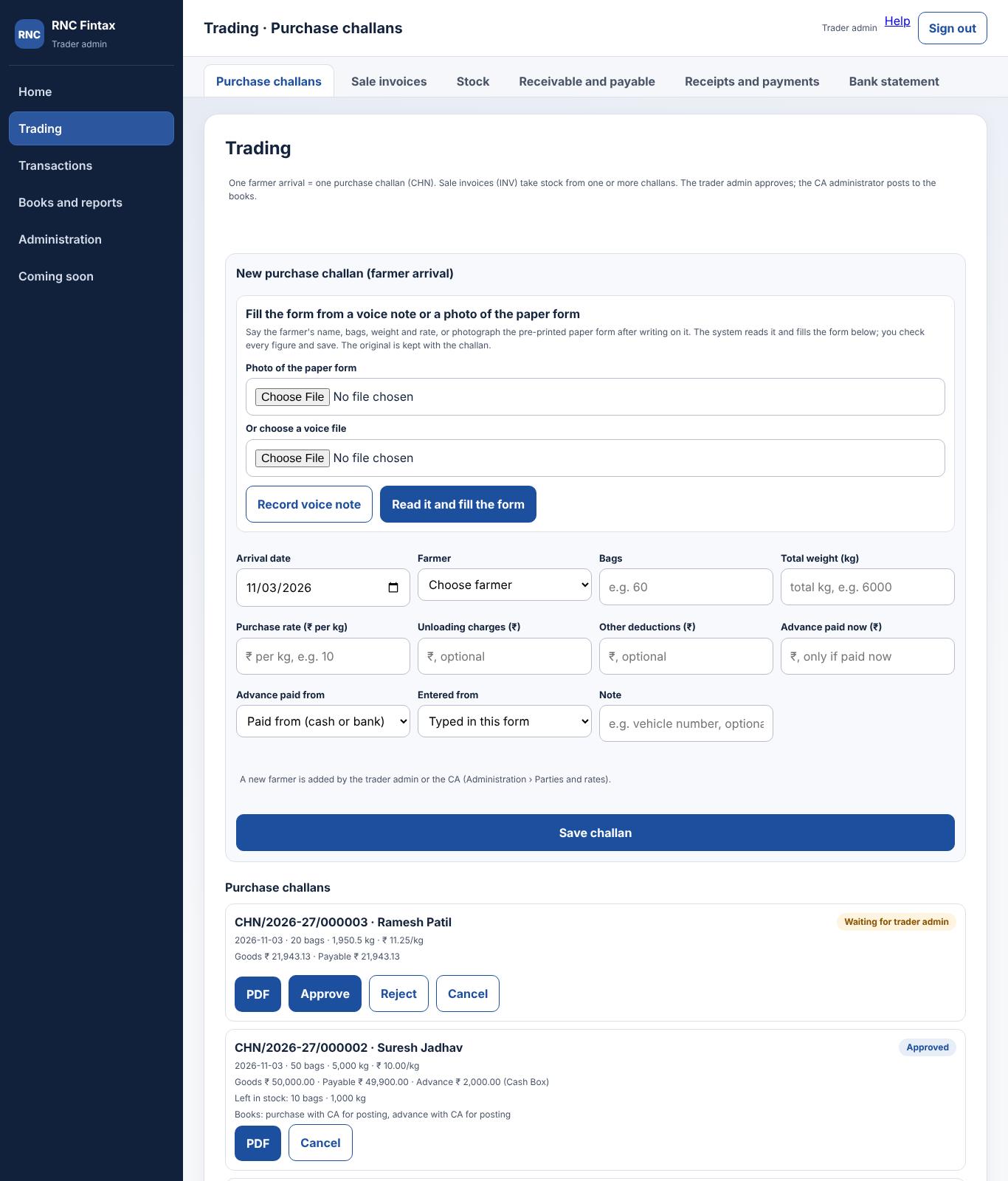
| Button | What it does |
|---|---|
| Approve | Accepts the document and prepares its accounting entry for the CA (and the advance entry, if any). A reason box opens; type a short reason such as Checked at the gate. |
| Reject | Sends it back as rejected. A challan or invoice that is rejected frees its stock again. |
| Cancel | Cancels a document. A challan with stock already on a live invoice cannot be cancelled; cancel or reject that invoice first. If the CA has already posted the entry, the CA must reverse it first. |
| Opens a printable copy. |
Check the farmer, bags, weight and rate against what you saw at the gate before approving. Documents are never edited or deleted: to correct one, reject or cancel it and ask the user to make a new one. A rejected or cancelled number is never reused.
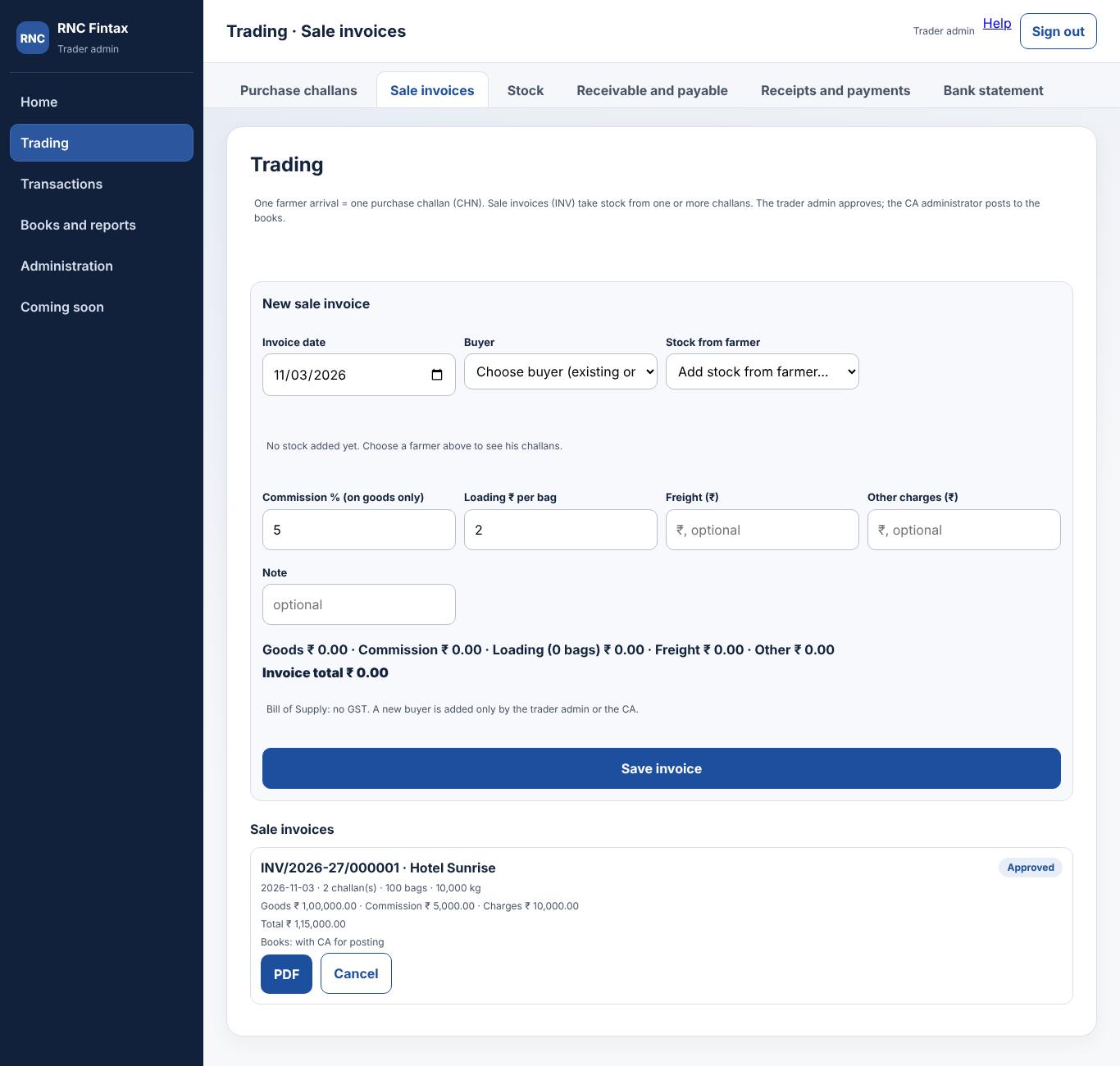
When you save a challan or invoice as trader admin, it is approved straight away.
Parties: farmers, buyers, cash and bank
Administration → Parties and rates lists the people and accounts the trader deals with. Only the trader admin and the CA administrator can add or change them.
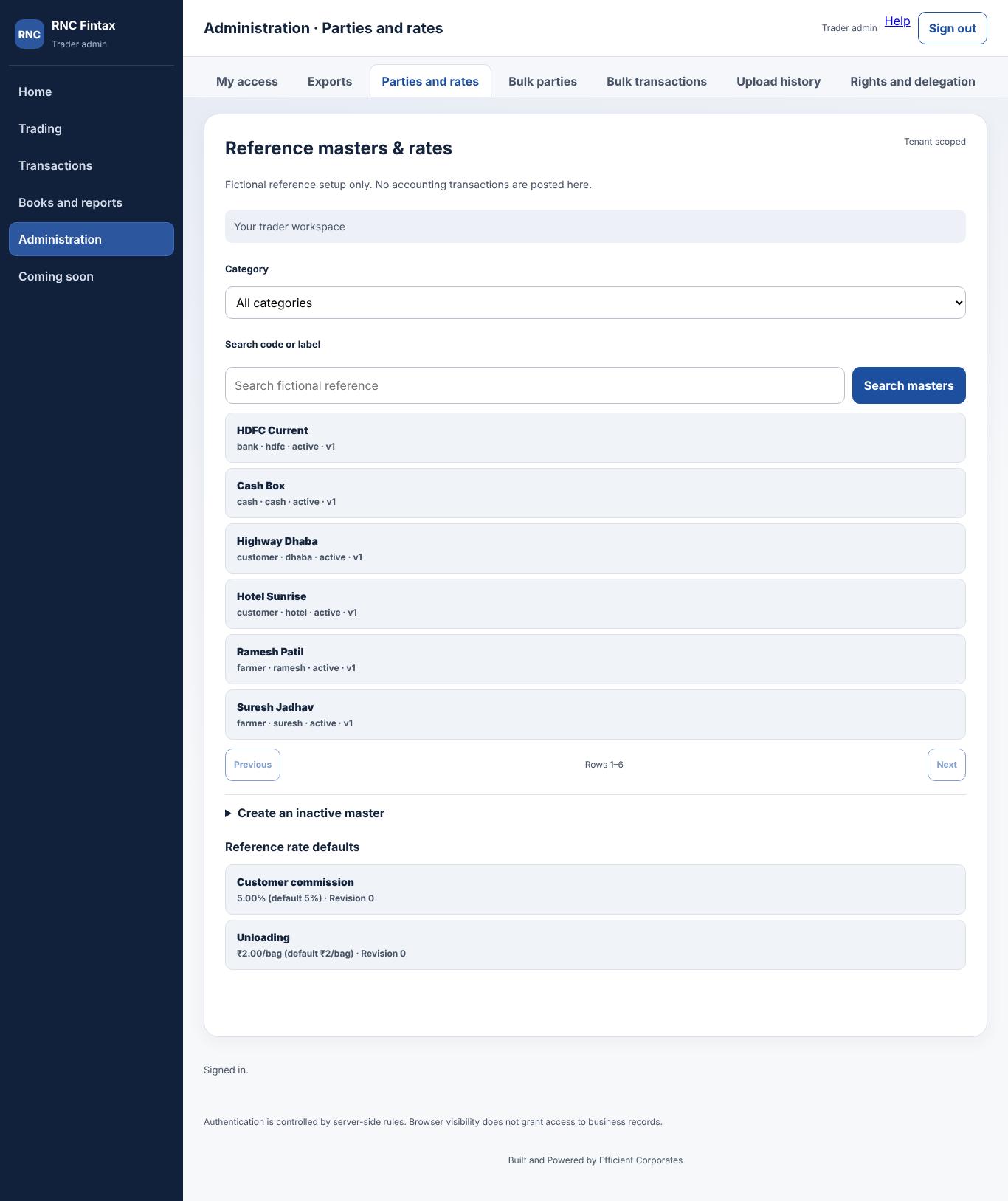
- Open Create an inactive master, choose the category (Farmer, Customer for a buyer, Cash, Bank …), type a short code and the name, and give a reason.
- A new party starts inactive. Activate it in the list before it can be used on a challan or invoice.
Upload many parties from Excel
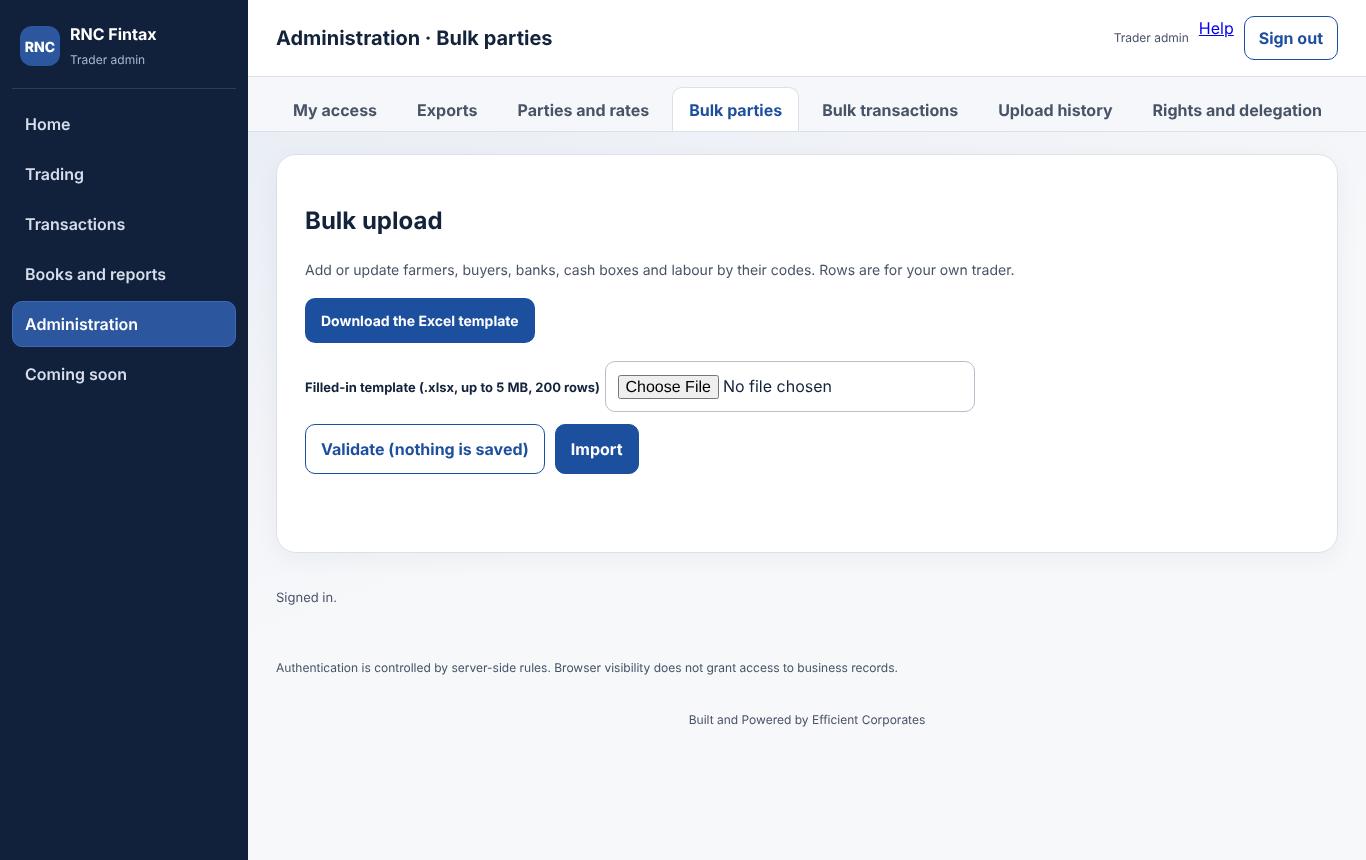
- Open Administration → Bulk parties and press Download the Excel template.
- Fill one row per party and save the file.
- Choose the file and press Validate (nothing is saved). Fix any rows that show errors.
- Press Import. Upload history keeps a record of each upload.
Limits: 200 rows and 5 MB per file.
Own stock: buy in the trader's own name and sell later
Sometimes the trader keeps goods instead of selling them for the farmer. The goods stay in stock, now in the trader's own name.
- Once only: on Trading → Stock, choose which buyer in your list is the trader itself (the own buyer). It cannot be changed afterwards.
- Move to own stock: on the same screen choose the farmer's challan and press move. Nothing is charged: no commission, no entry in the books, only the stock changes. (An own-name sale invoice records this move.)
- Sell later: make an ordinary sale invoice and, for the line, take the stock from own stock of that challan. Commission is charged as usual, and the cost of goods sold uses the challan's purchase cost.
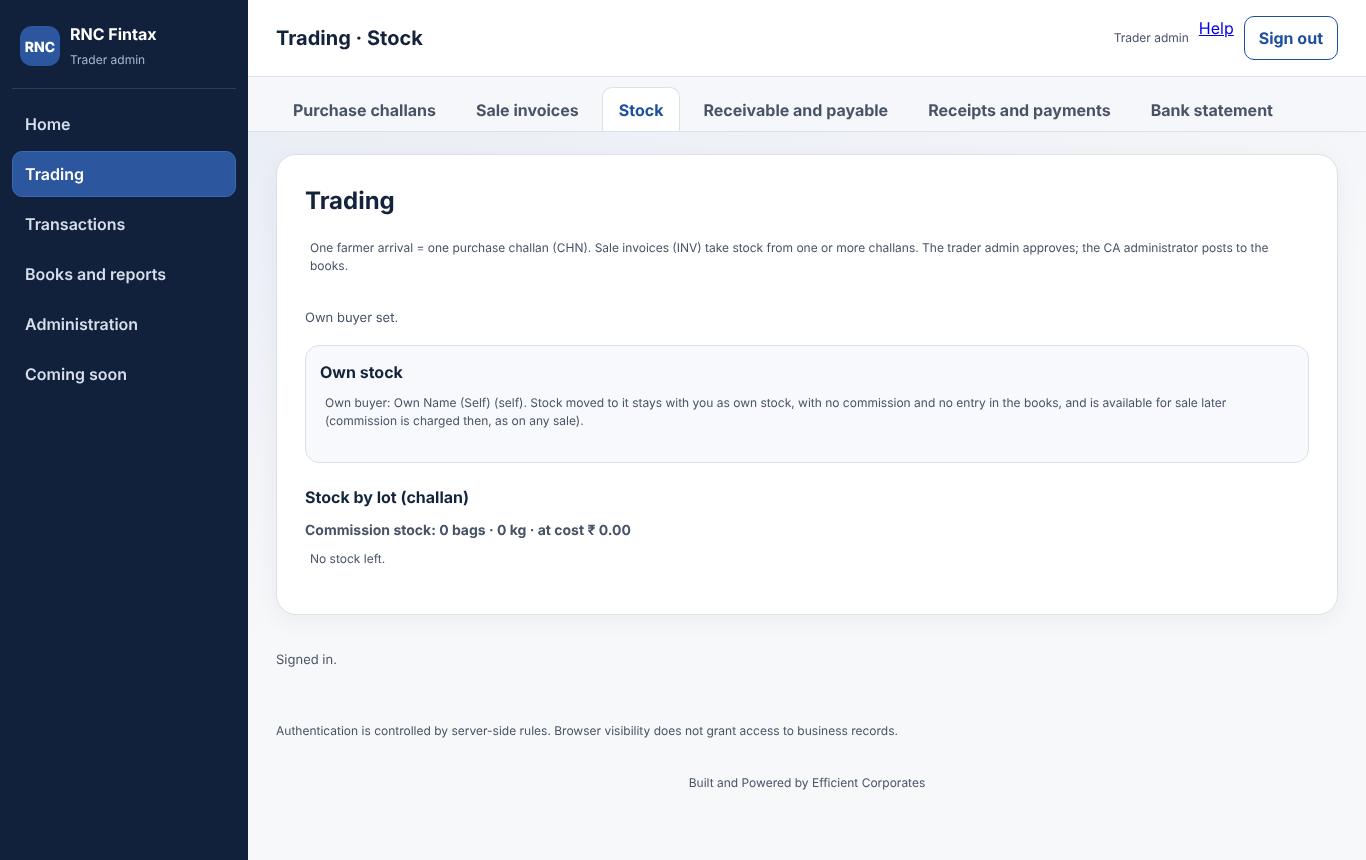
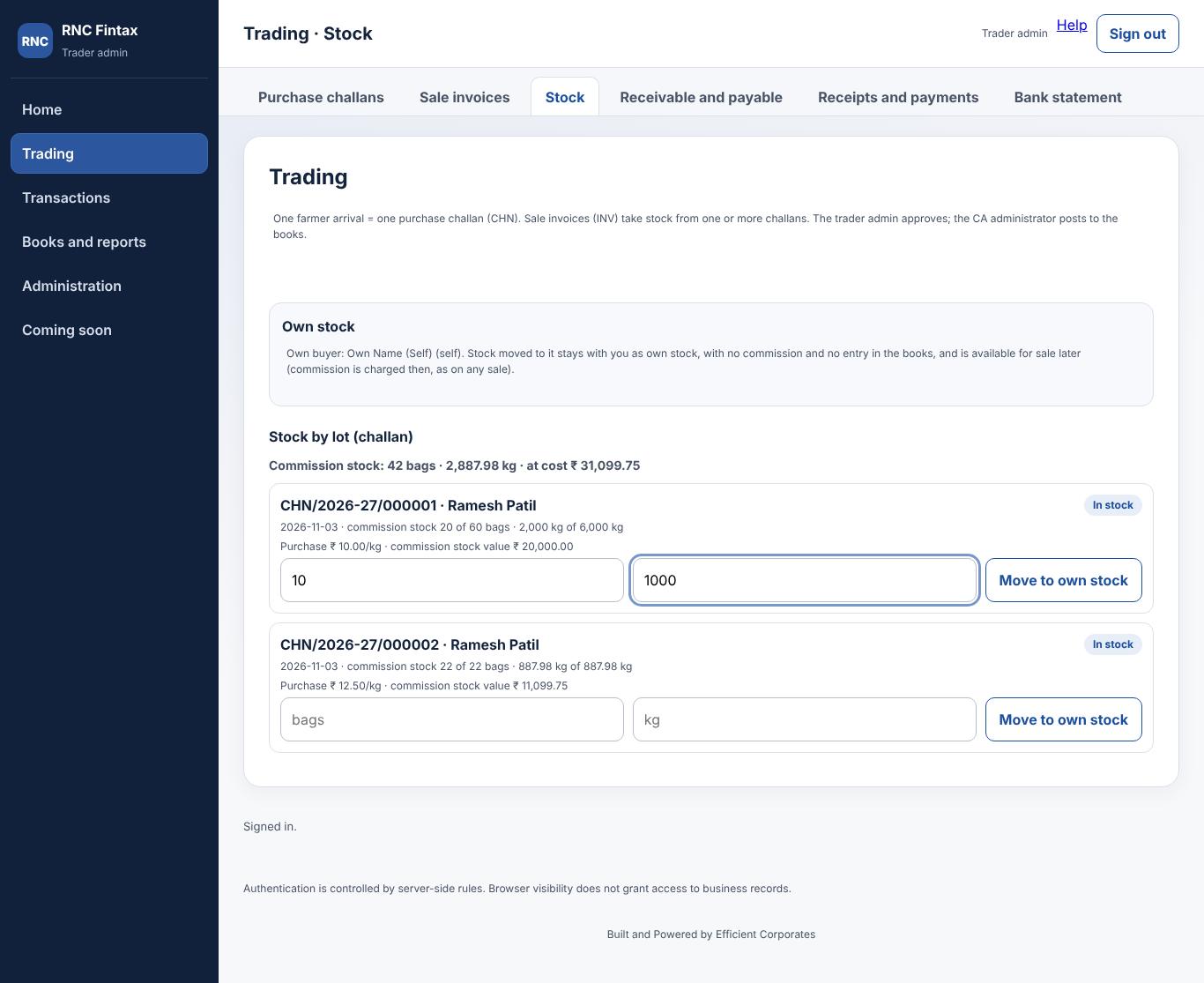
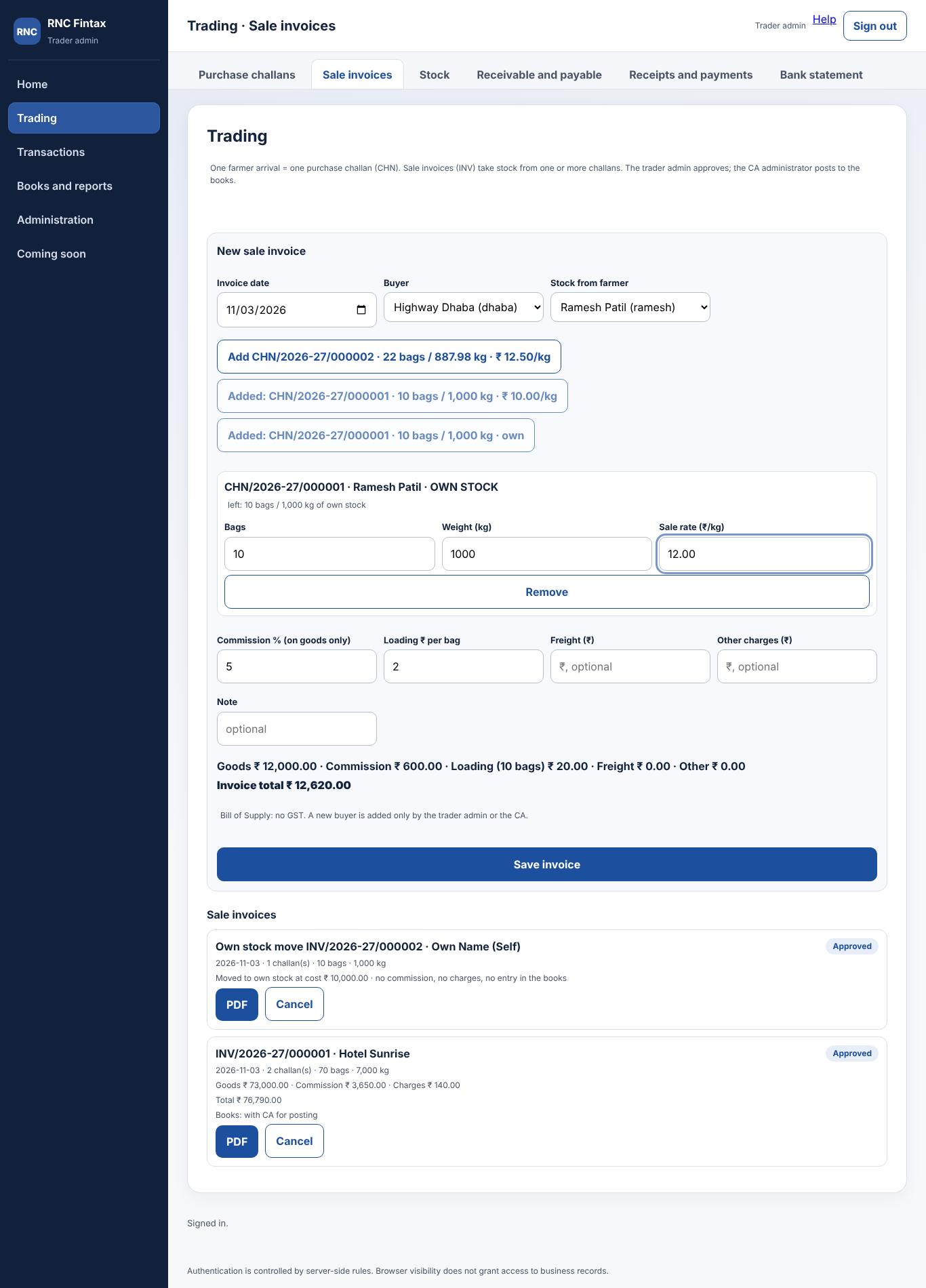
Each challan therefore has two pools, commission stock (sold for the farmer) and own stock. A challan with own stock sold cannot be cancelled until that sale is cancelled.
Receipts and payments: settle invoices and challans
Open Trading → Receipts and payments (the trader admin, or a trader user who has been given the right to record receipts and payments). A receipt is money from a buyer against sale invoices; a payment is money to a farmer against purchase challans.
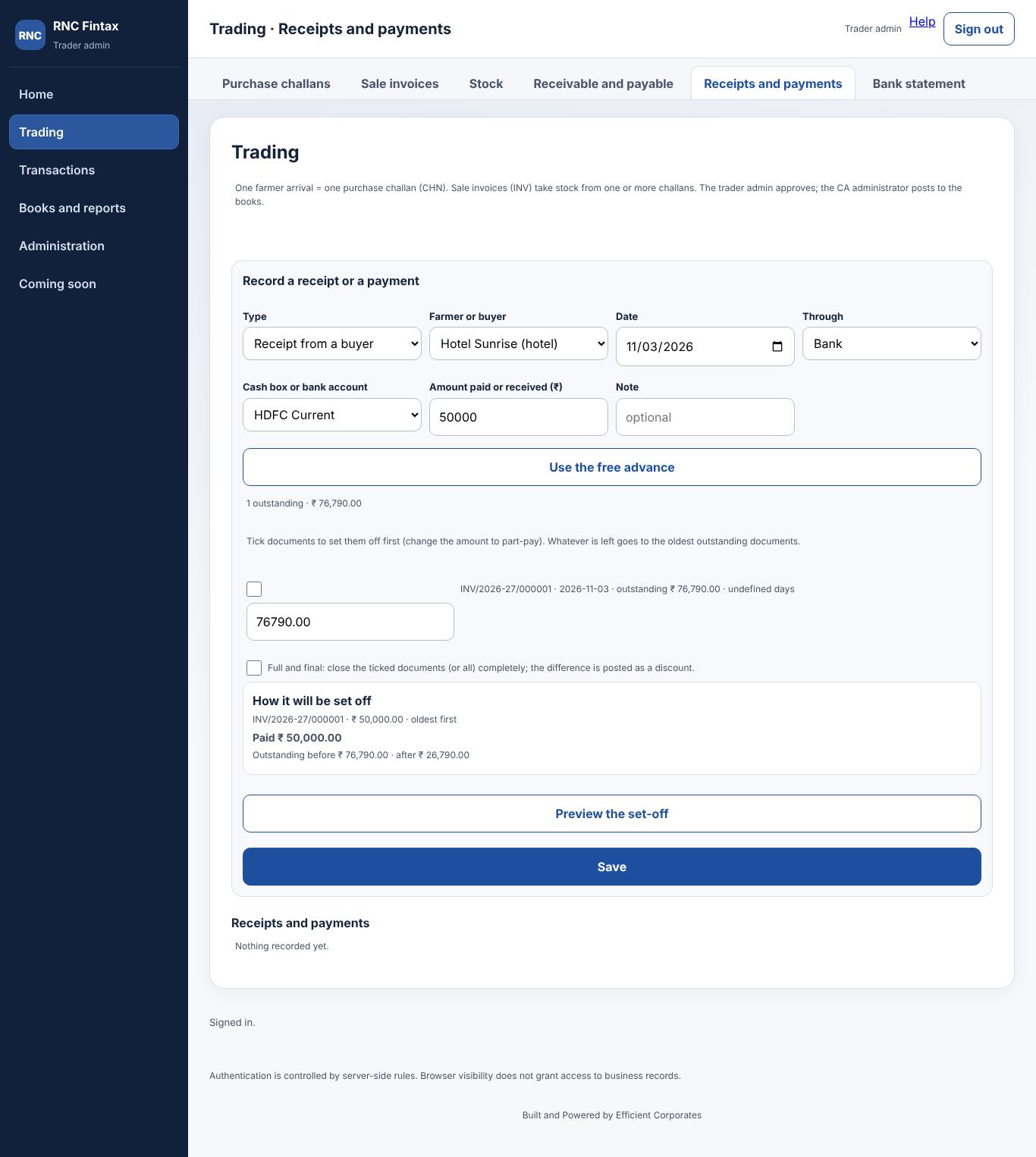
- Pick the party, the date, the amount and the cash box or bank account.
- Optionally tick the invoices (or challans) you want settled first and say how much goes to each. Whatever is left is set off against the oldest documents first. Part payments are fine.
- Press Preview. Nothing is saved until you press save.
- If the money is more than everything due, the extra stays on account: a buyer's advance, or a farmer's advance.
Full and final settlement
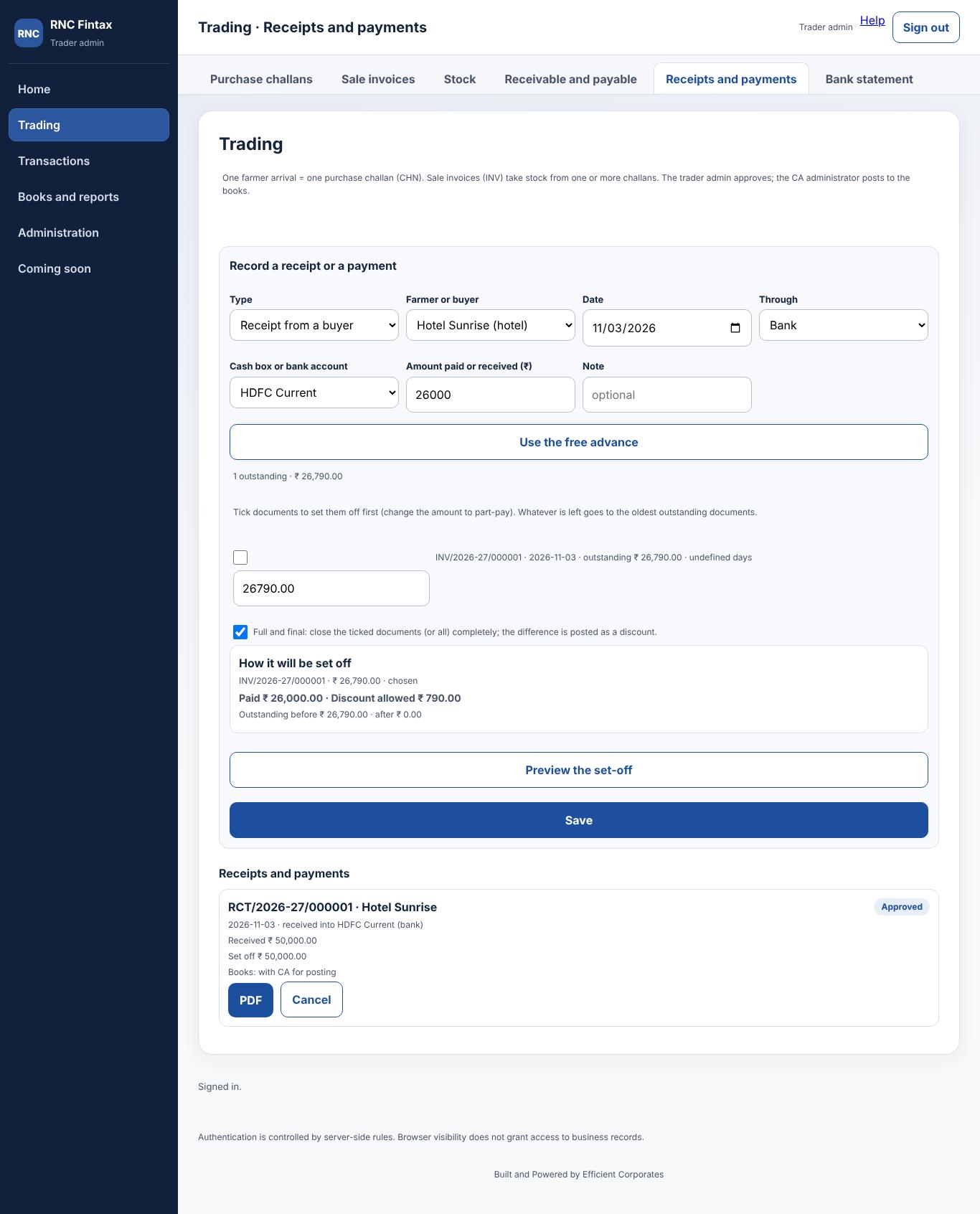
If the buyer pays less and you accept it as full settlement, tick full and final. The shortfall is booked as discount allowed (on a receipt) or discount received (on a payment) and the invoice is closed.
Paying a farmer who was given an advance
An advance paid at the farmer's arrival, or money paid beyond what was due, stays as the farmer's advance until it is used. A new payment can apply it: tick use advance and the preview shows how much of it goes against which challan.
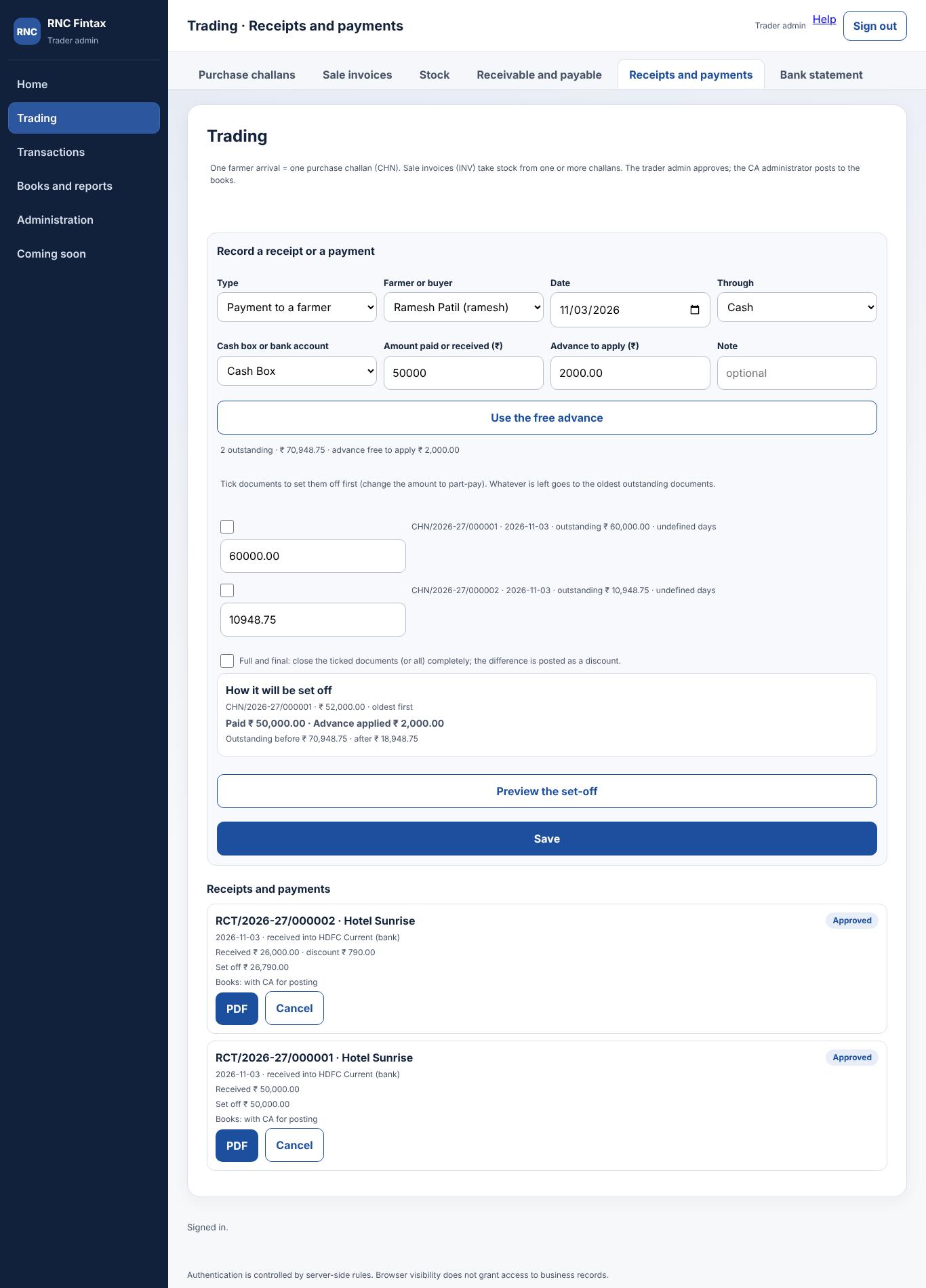
A saved receipt or payment waits for approval like a challan (the trader admin's own are approved at once), and then goes to the CA for posting. A wrong one is rejected or cancelled, never edited; a printable slip is available.
| Worked example | ₹ |
|---|---|
| Invoices outstanding: INV-1 (oldest) 30,000, INV-2 50,000 | 80,000 |
| Buyer pays 45,000 and you tick nothing | 45,000 |
| Set off: INV-1 30,000 (closed), INV-2 15,000 (35,000 still due) | 45,000 |
| Buyer later pays 34,000 and you tick full and final for INV-2 | 34,000 |
| INV-2 closed; discount allowed | 1,000 |
Bank statement: upload, tag and settle line by line
Open Trading → Bank statement. Upload the statement (columns Date, Particulars, Cheque no, Debit, Credit; up to 200 lines and 5 MB). Lines already uploaded earlier, or the same file twice, are refused as duplicates.
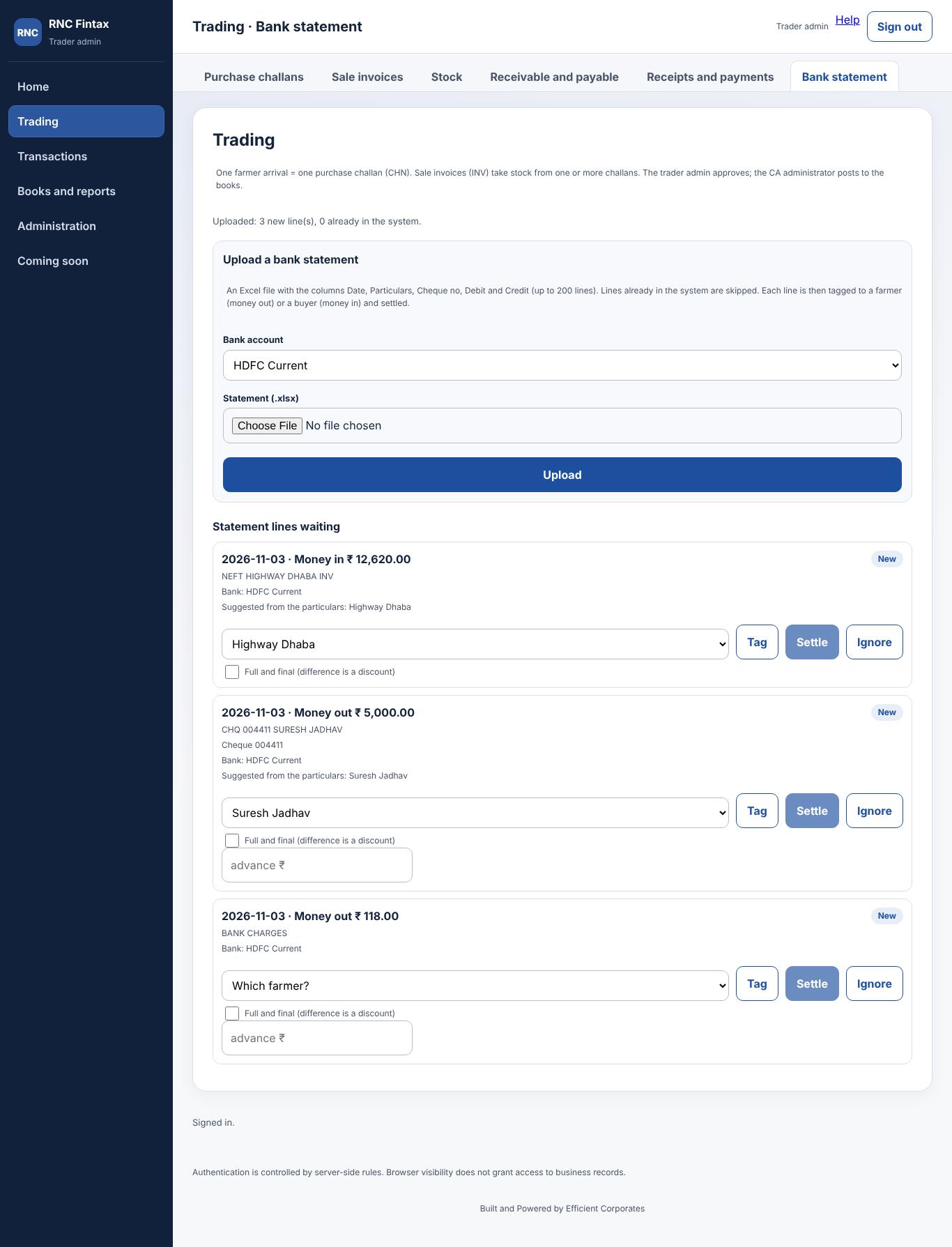
- A credit (money in) is tagged to a buyer; a debit (money out) is tagged to a farmer.
- Press Settle on a line. It opens the same receipt or payment preview with the amount and date filled in.
- A line that is not business (bank charges, personal) can be ignored, and brought back with unignore.
A line can be settled only once.
Rights and delegation: who can do what
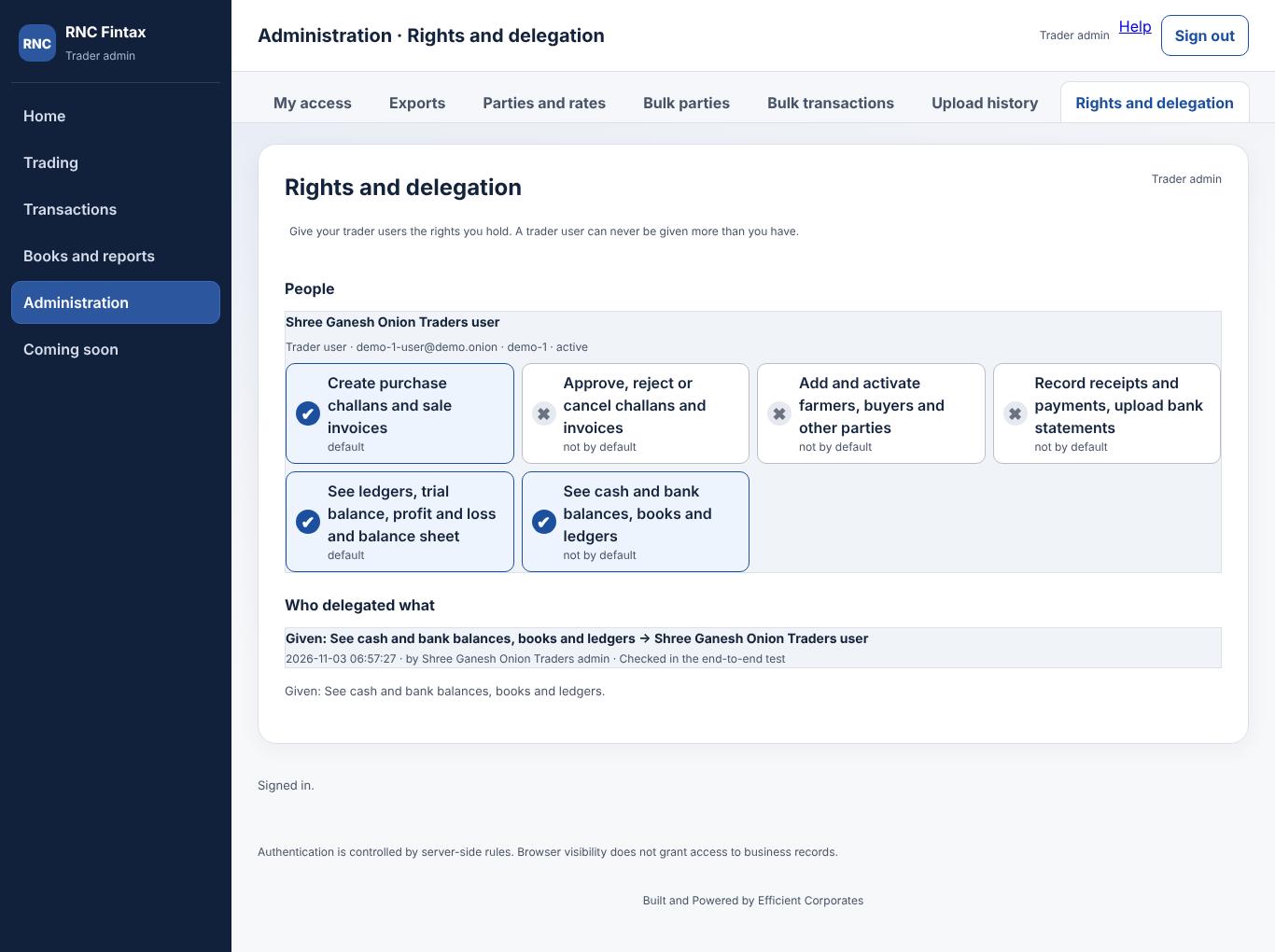
Everything a person can do is a right. There are seven. Each role starts with a default set, and rights can be added or taken away person by person.
| Right | What it allows |
|---|---|
| Create challans and invoices | Save purchase challans and sale invoices. |
| Approve, reject or cancel | Decide challans, invoices and settlements. |
| Add and activate parties | Farmers, buyers and other parties. |
| Record receipts and payments | Settlements and bank statement upload. |
| See ledgers and reports | Ledgers, trial balance, profit and loss, balance sheet. |
| See cash and bank | Cash and bank balances, books and ledgers. |
| Post entries (CA side) | Approve and post entries to the books. |
The trader admin opens Administration → Rights and delegation and taps a right to switch it on or off for a trader user. You can give only rights you hold yourself. Every change is recorded with who made it, when, and the reason, and is shown under Who delegated what.
First time: install the trade setup
Before the first challan can reach the books, the CA administrator presses Install trade setup once (Trading screen). Choose any trader first only if you also want to see their documents.
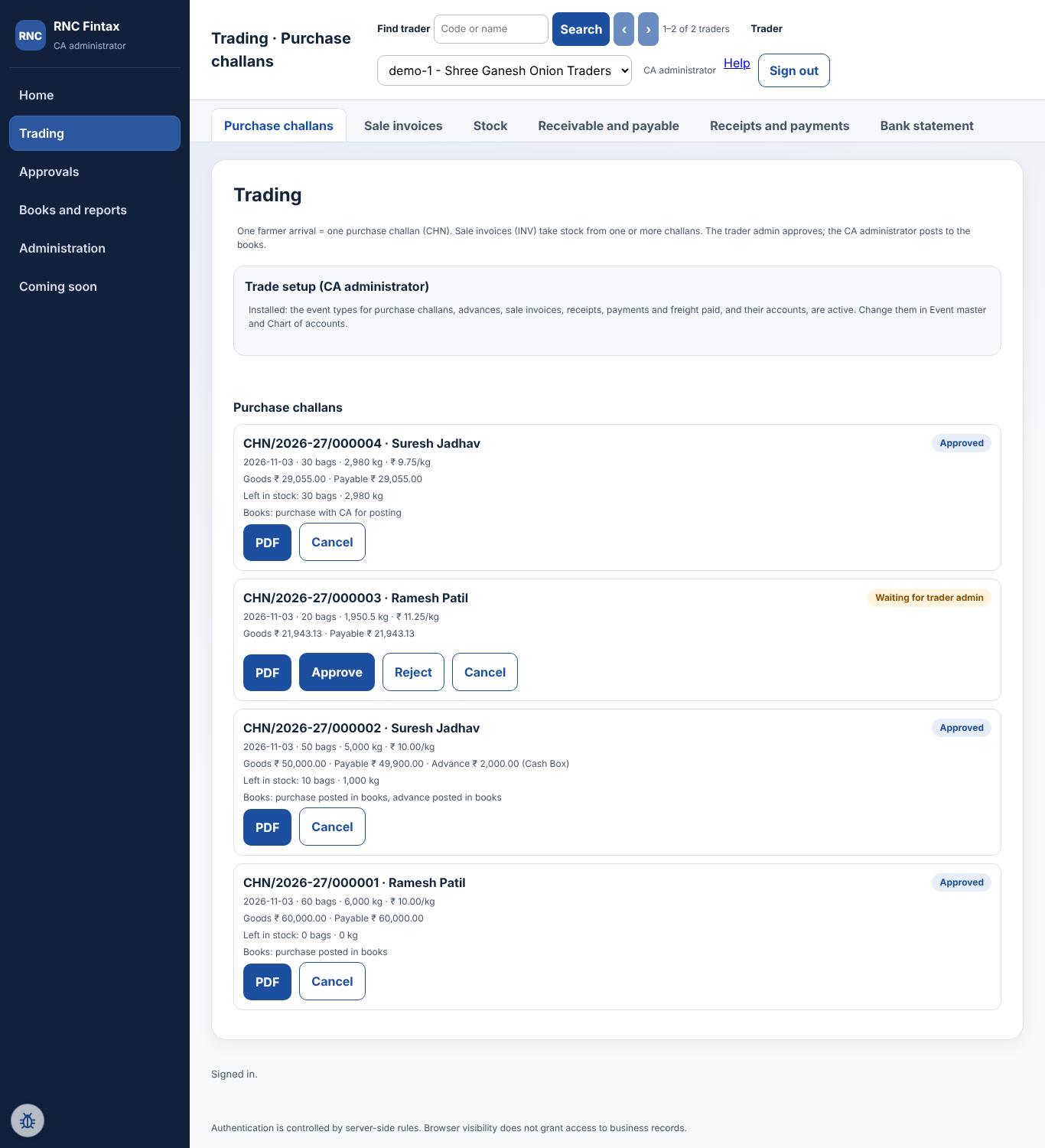
It creates, for all traders:
- Five accounts: Sales; Freight Charges Recovered; Other Charges Recovered; Freight Expense; Discount Allowed.
- Four posting rules (event types):
CHN_PURCHASE: purchase challan. Stock-in-trade is debited; the farmer is credited with the net amount; unloading and other deductions are income.CHN_ADVANCE_CASHandCHN_ADVANCE_BANK: an advance to a farmer. The farmer is debited; cash or bank is credited.INV_SALE: sale invoice. The buyer is debited; Sales, Commission, Loading, Freight and Other charges are credited; Cost of goods sold is debited and Stock-in-trade is credited at the challan's purchase cost.
After that these rules are ordinary data: change them under Event master (a new version with a reason; older entries keep the version they were posted with). Until the setup is installed, a trader admin who approves a challan sees TRADE_RULES_NOT_INSTALLED.
Approve and post entries to the books
Choose the trader at the top, then open Approvals → Approvals and journal.
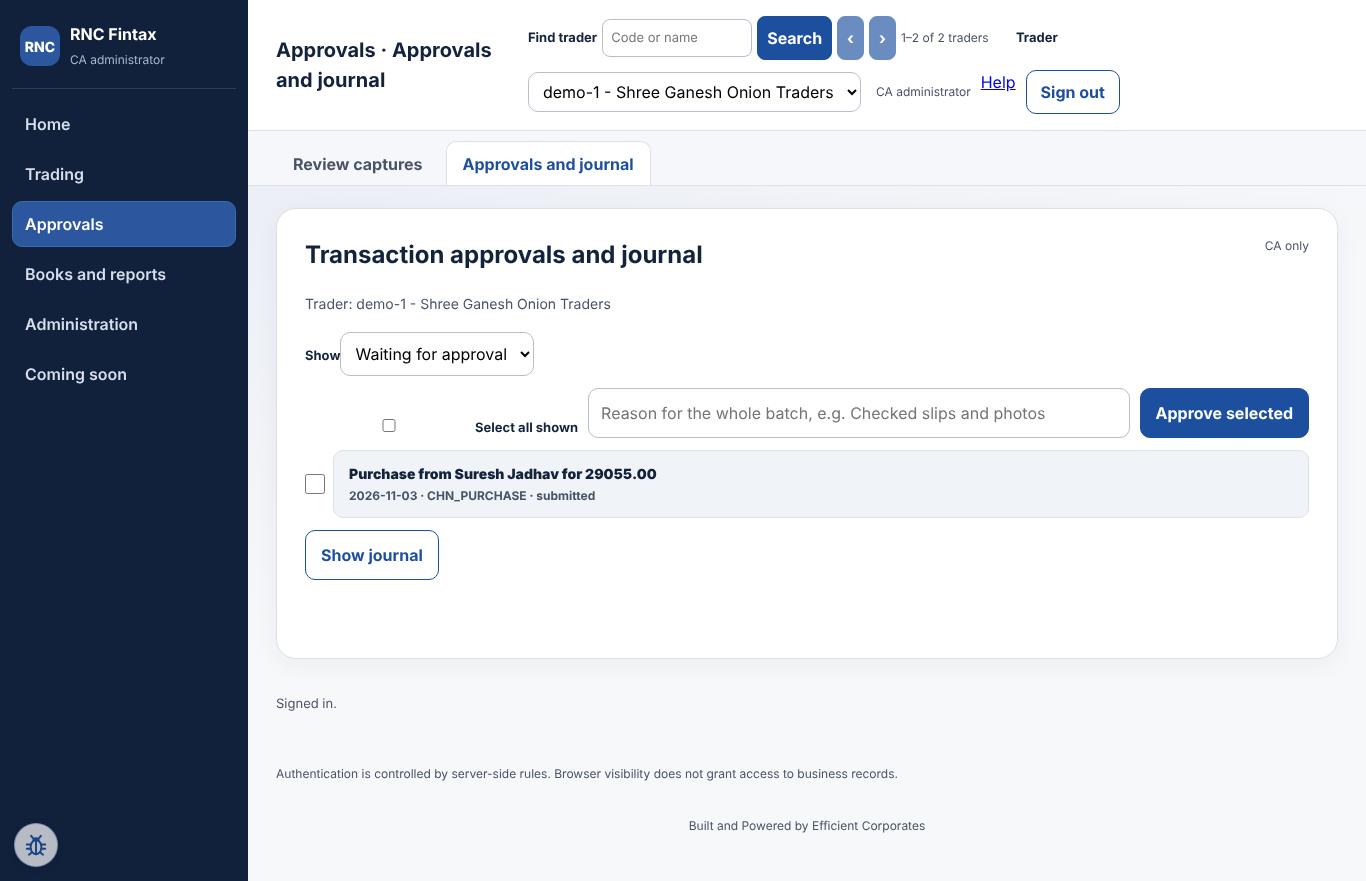
- The list shows Waiting for approval entries (change Show to see posted, rejected or reversed ones). Each line gives the description, date, event type and status.
- Open an entry to see the accounting lines (debits and credits) it will create. Warnings appear, for example if a cash box would go below zero.
- Press Approve to post it, or Reject with a reason.
- To clear many at once, tick them (or Select all shown), type one reason for the batch, and press Approve selected (up to 50 at a time). Each entry is posted on its own; the result lists any that could not be, for example because the month is locked.
- Show journal lists the posted entries.
A posted entry is never changed. To correct it, open it and choose Reverse with a reason; the books are corrected by an opposite entry. Only the CA administrator can approve, reject or reverse. A CA maker cannot.
Review voice and photo captures
Approvals → Review captures (CA administrator and CA maker) lists what traders have sent as a voice note or photo.
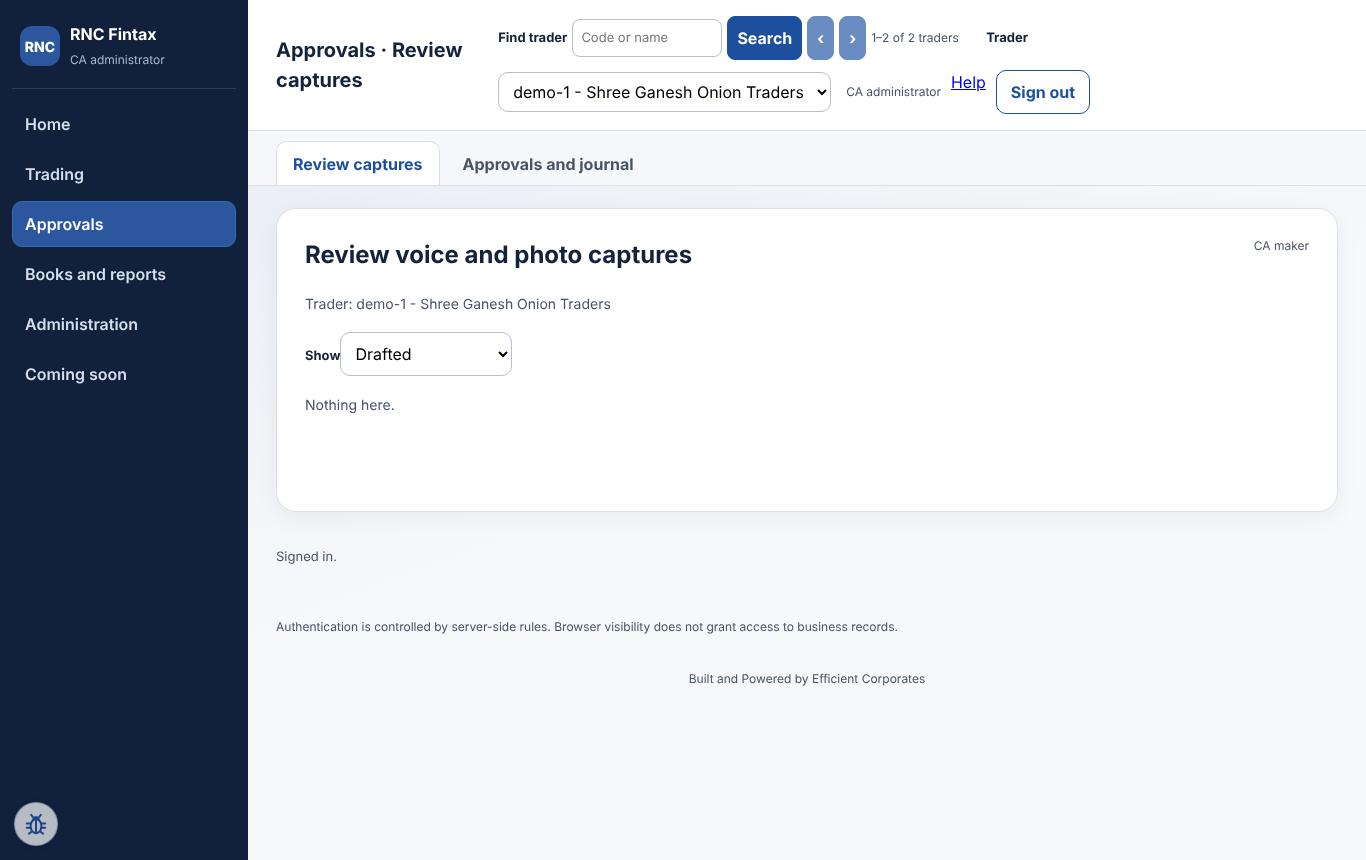
- Select the capture. Play the voice note and look at the photo.
- Compare them with the AI draft. The re-check recomputes quantity × rate, labour and totals, and flags any difference with the figure written on the bill.
- Choose the event and the parties, correct the figures, and press Confirm and send for approval. The system makes a numbered slip PDF that cannot be altered, and the entry goes to the CA administrator's queue.
- If the capture is unusable, press Return to trader with a reason. Run the AI again is limited to three runs.
Books and reports
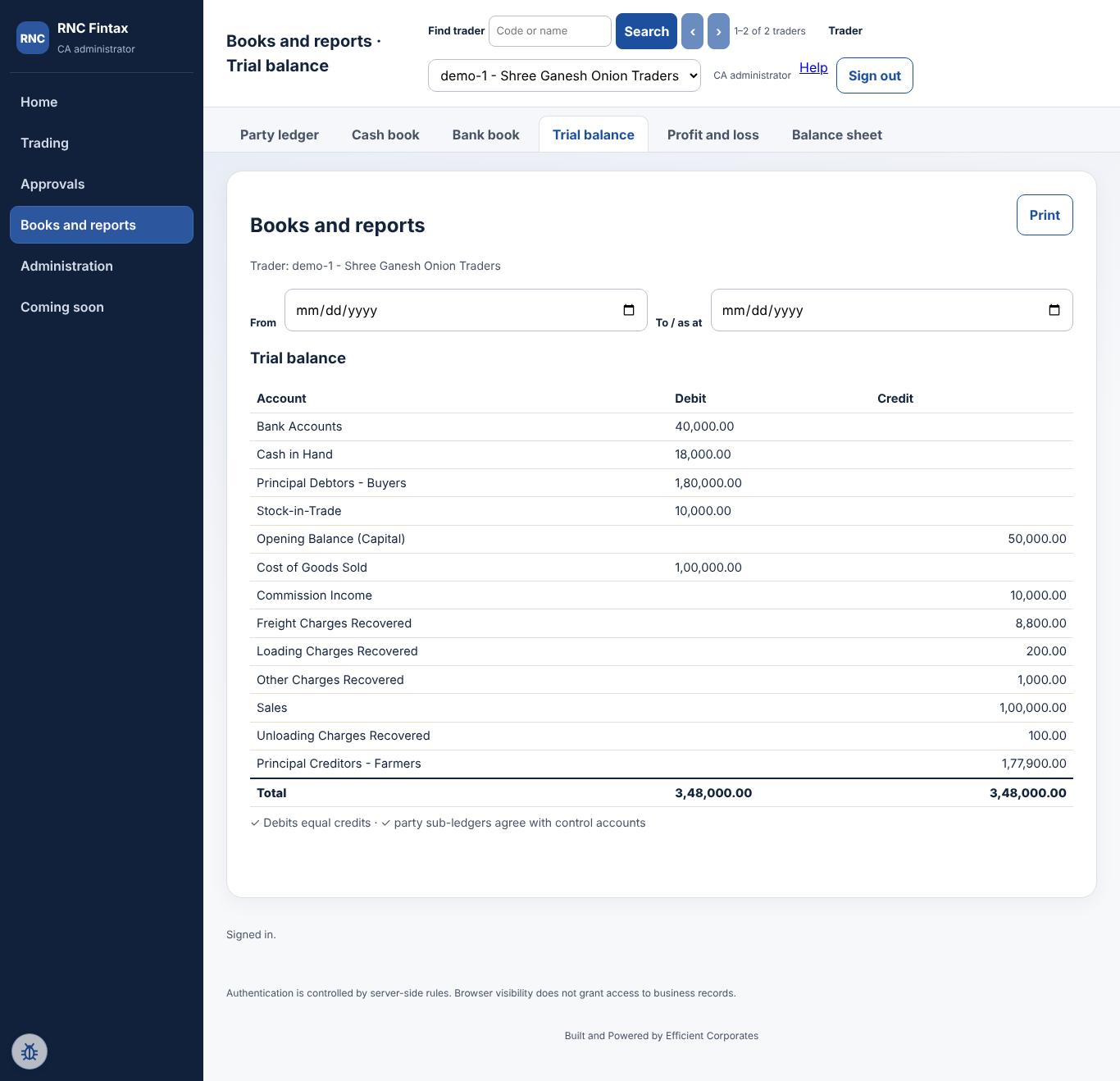
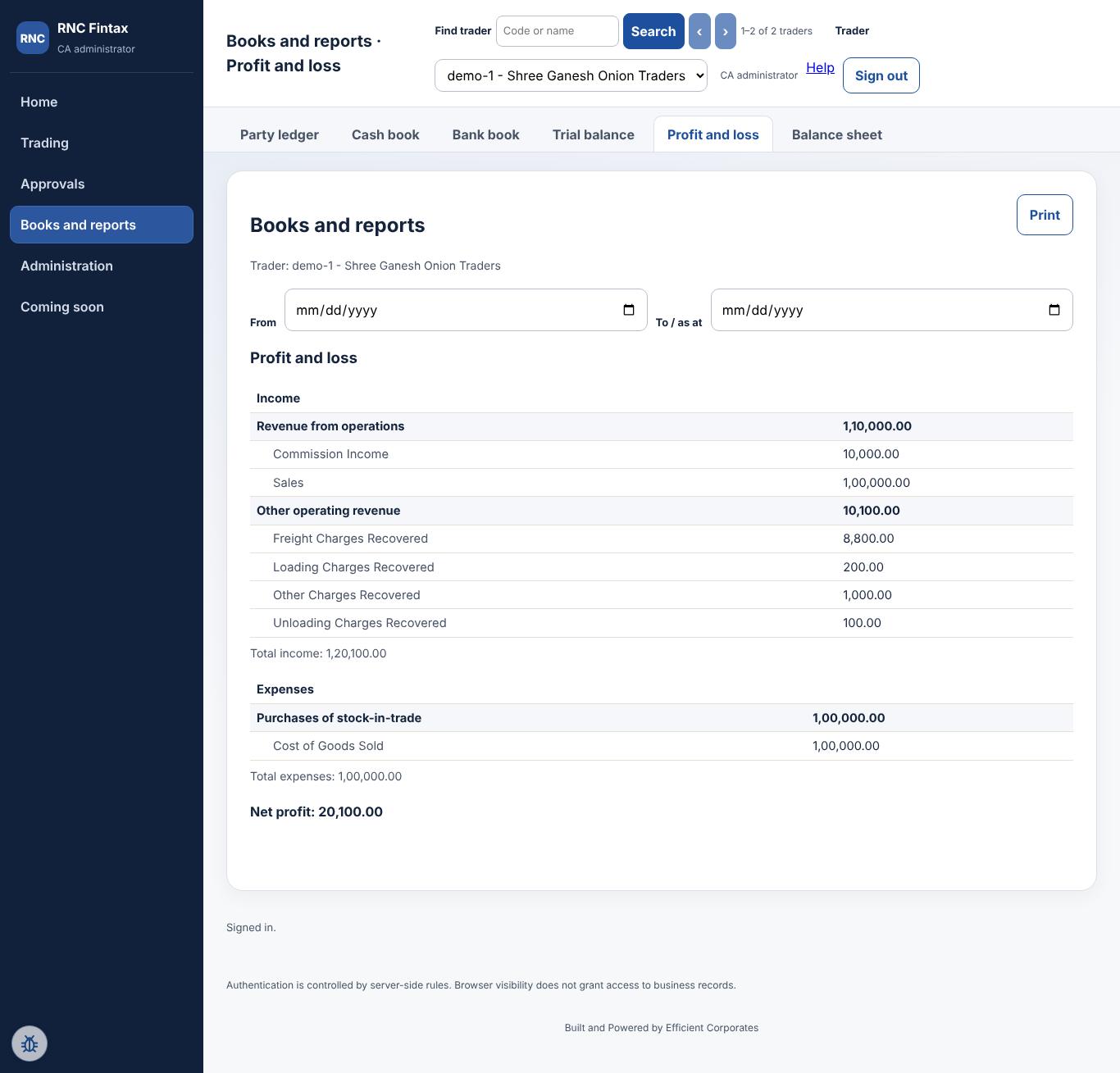
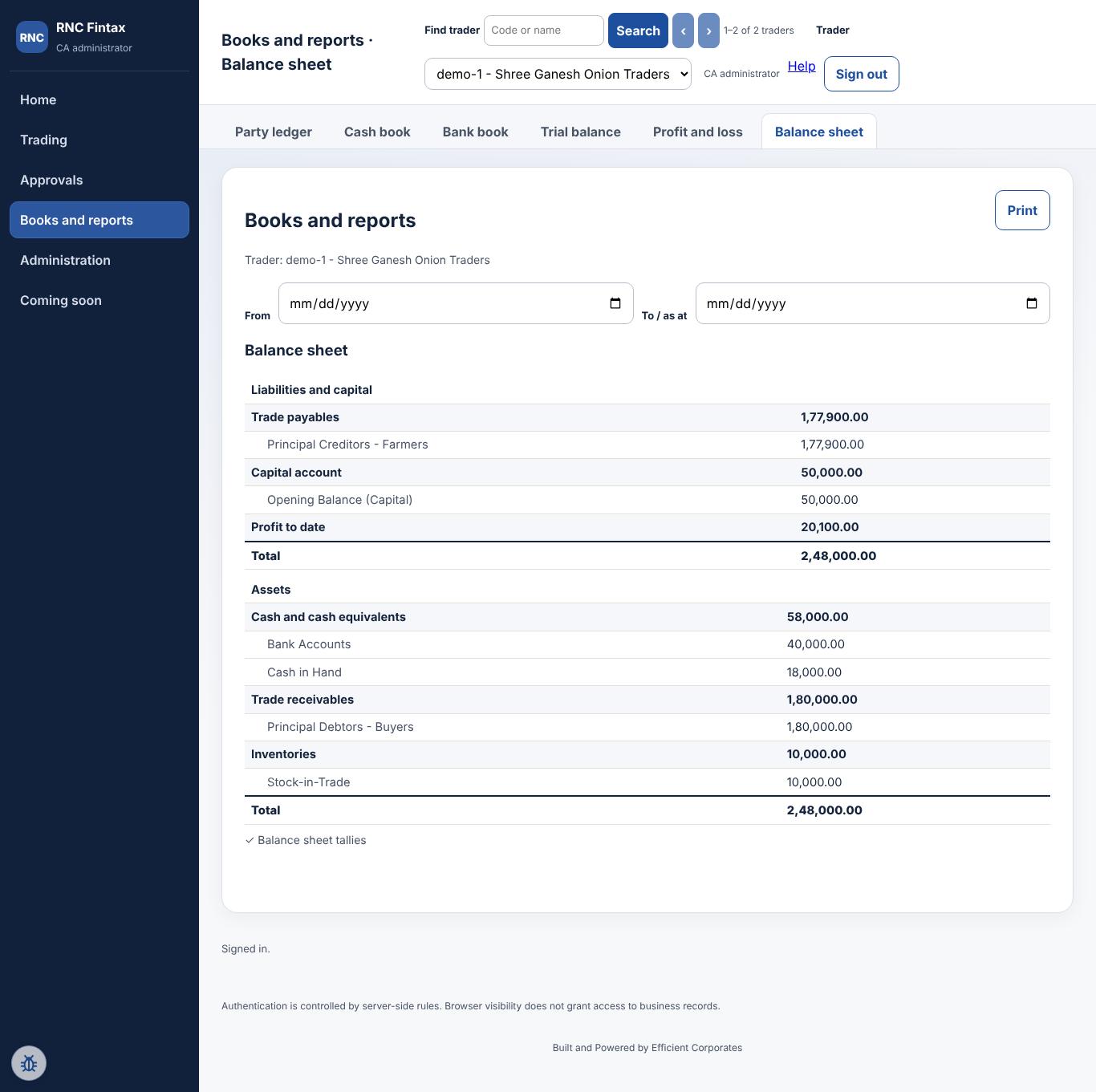
Everything here comes from posted entries only. Pick the dates at the top (From, To / as at); the report refreshes when you change them. Press Print for a paper copy.
Party ledger
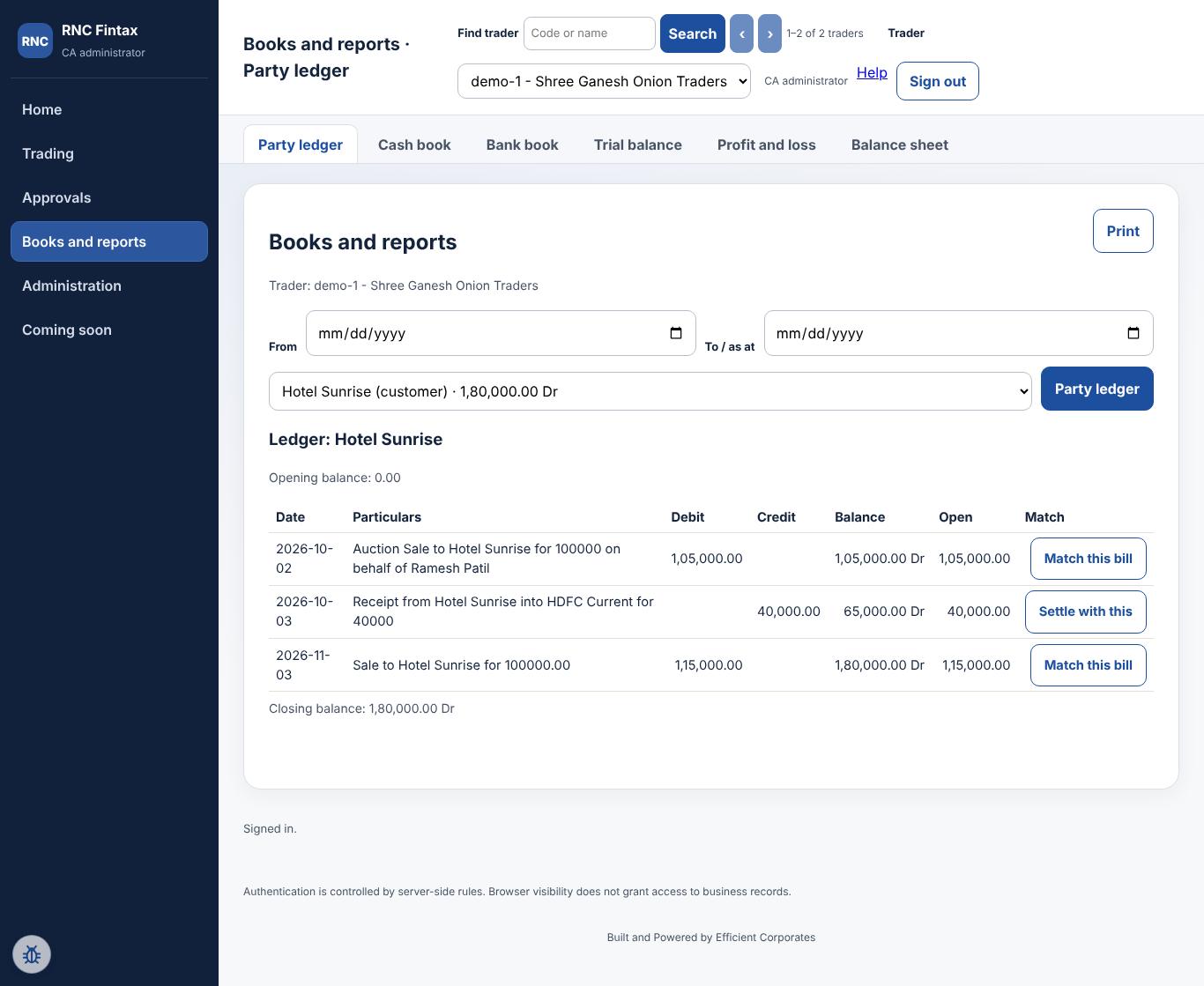
Choose the party and press Party ledger. A buyer's balance is what he owes; a farmer's is what is payable to him.
Trial balance
Profit and loss
Balance sheet
The Cash book and Bank book tabs list the movements of each cash box and bank account.
CA home: all traders at a glance
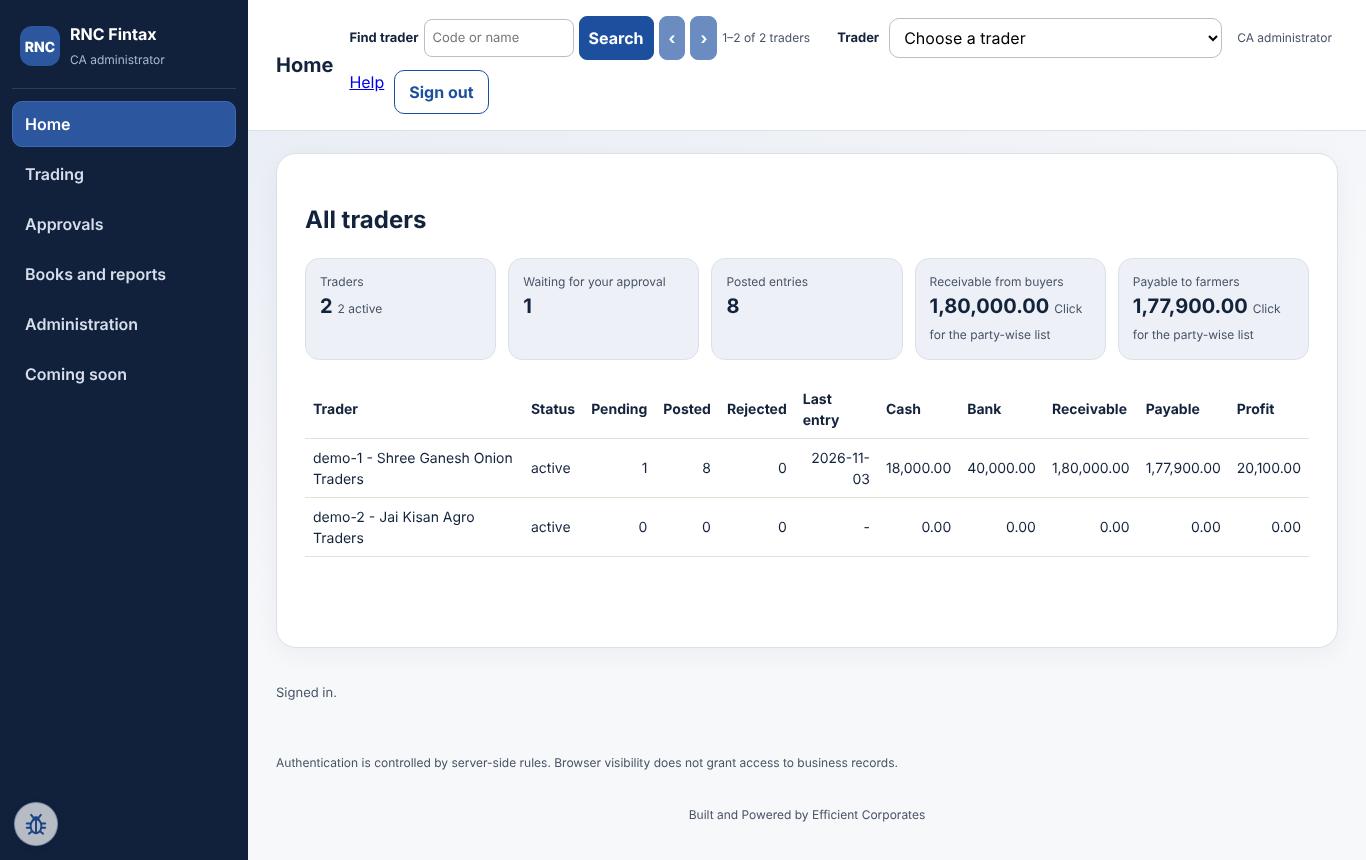
- The cards total all traders: entries waiting, posted, cash, bank, receivable, payable and profit.
- Click Receivable or Payable to open the party-wise list across traders (with the trader in its own column); download it as a file if needed.
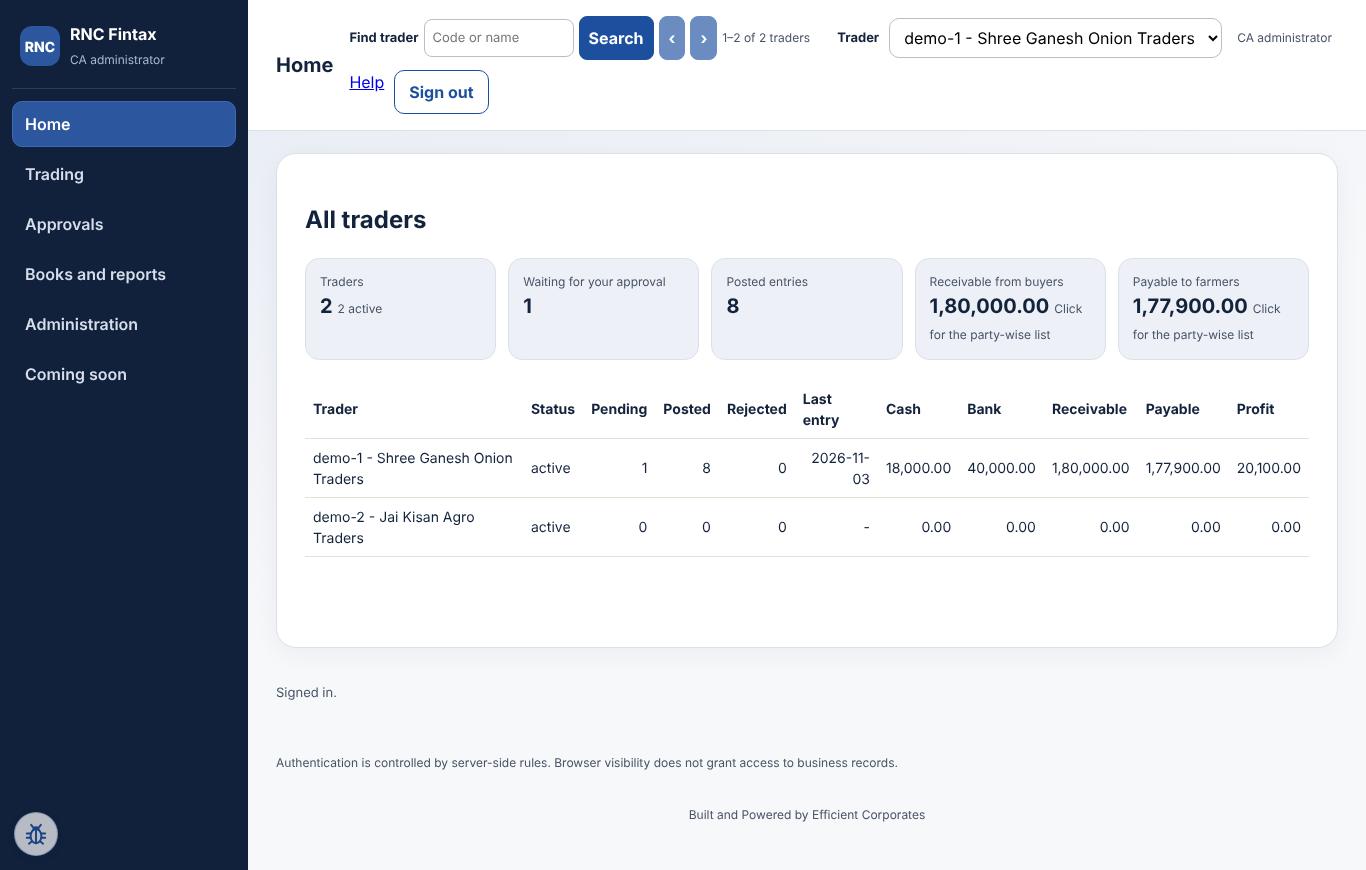
- After choosing a trader at the top, Home shows that trader's own cards.
Traders and users, onboarding, passwords
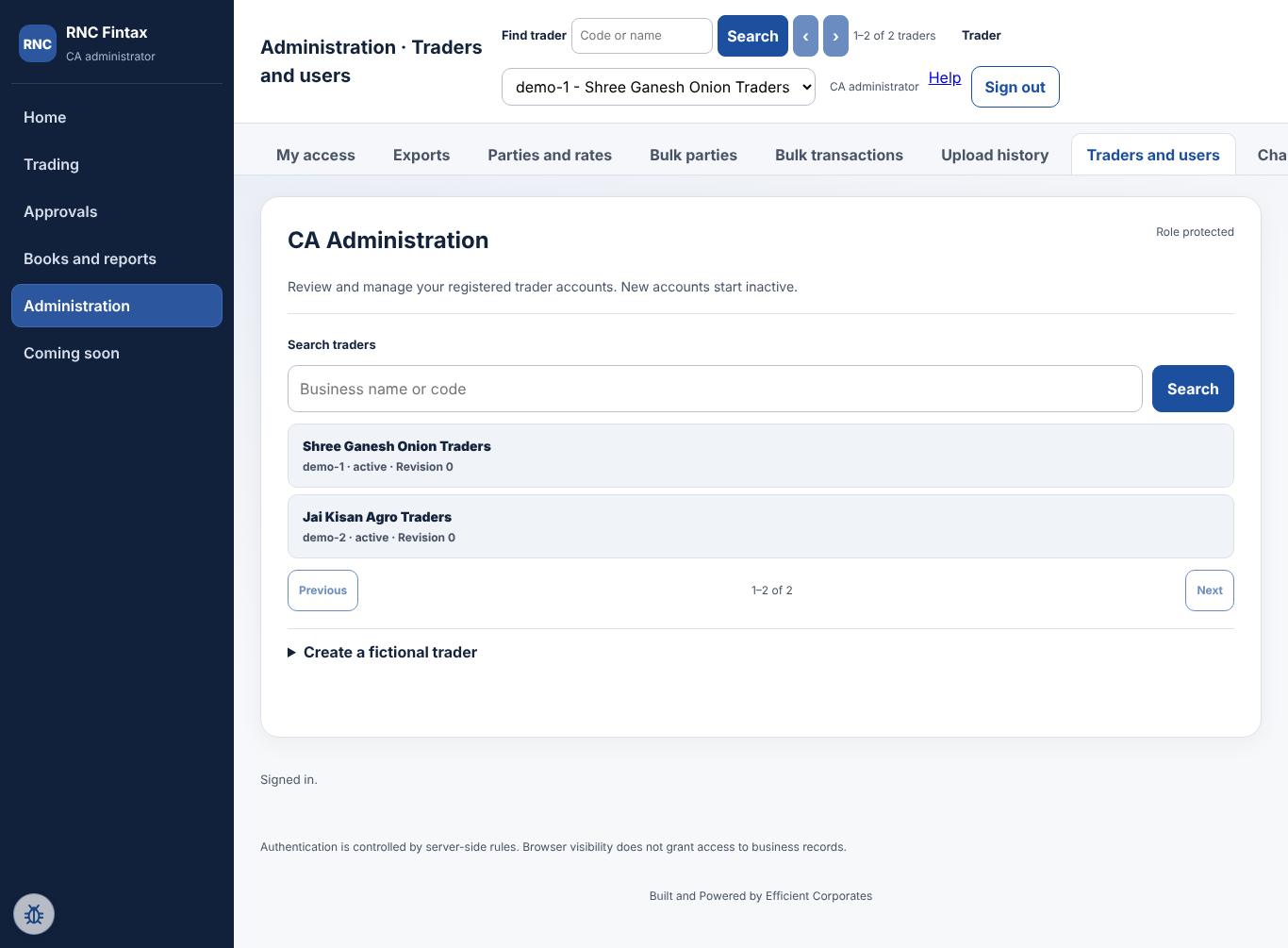
- Open Create a trader, then Create a trader user for its trader admin and trader user logins. New traders and users start inactive; activate them before they can sign in.
- Financial period lock (CA only) on the same screen closes a month so nothing more can be posted into it.
- Reset password on a user makes a new one-time password and ends that user's sessions. Hand it over privately.
- Deactivating a user or trader ends their sessions at once.
Onboard many traders from Excel
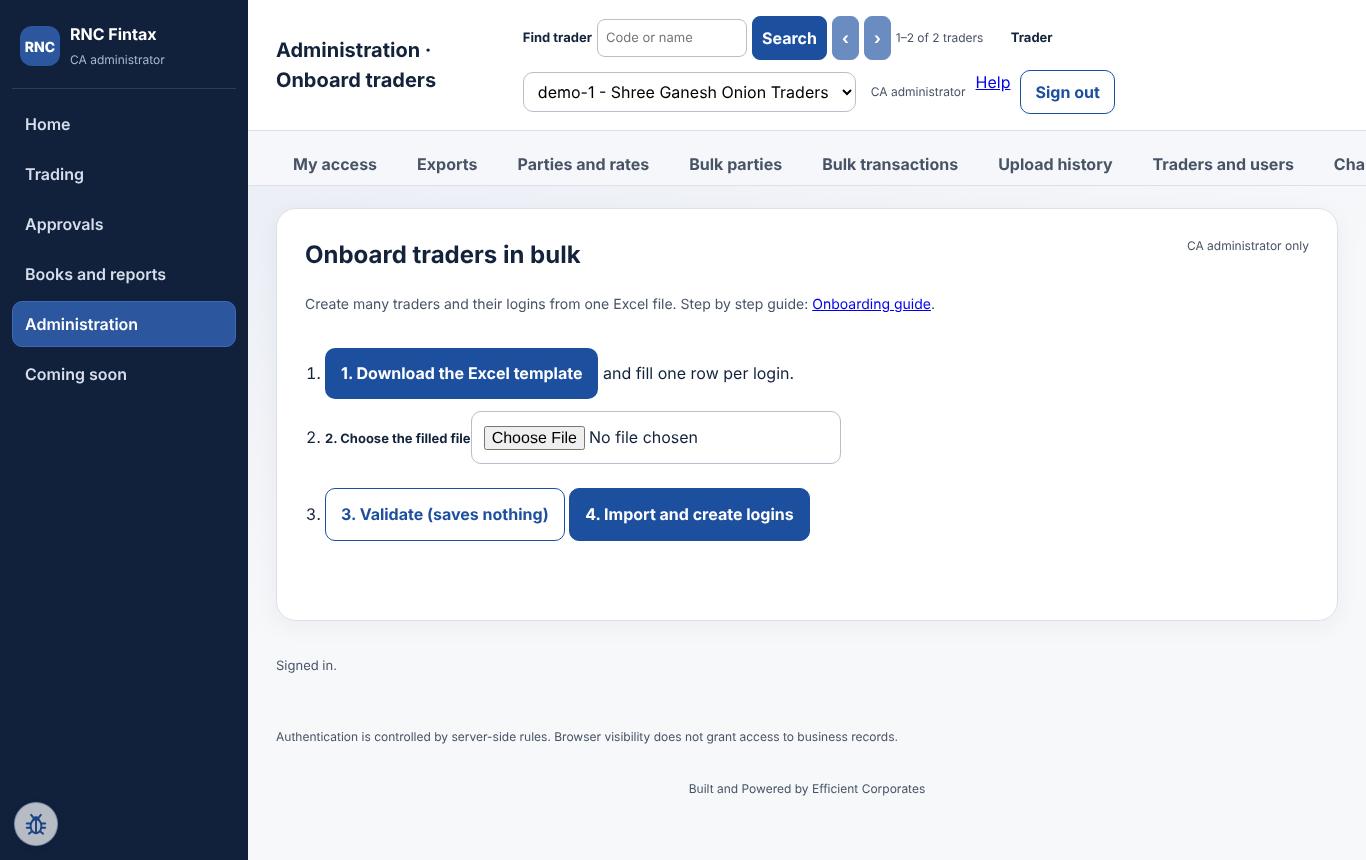
- Download the template. One row per login: trader code, business name, login ID, user name, role.
- Validate (nothing is saved), then Import (up to 50 rows).
- Each new password is shown once. Download the credentials file straight away and give each person their own.
Delegating rights, and the authenticator code
The CA administrator can give rights to CA users, trader admins and trader users, from Rights and delegation. A risky grant (one that lets a person approve, post or see cash and bank) asks for a 6-digit code from an authenticator app. Taking a right away, and giving rights to trader users and trader admins by the trader admin, need no code. Rule, chart-of-accounts and user management always stay with the CA administrator.
One-time setup of the authenticator
- Open Rights and delegation and press Set up authenticator.
- In an authenticator app (Google Authenticator, Microsoft Authenticator or similar) add the key shown on the screen.
- Type the 6-digit code the app shows and press confirm. From then on a fresh code is asked for on each risky grant. A code works once.
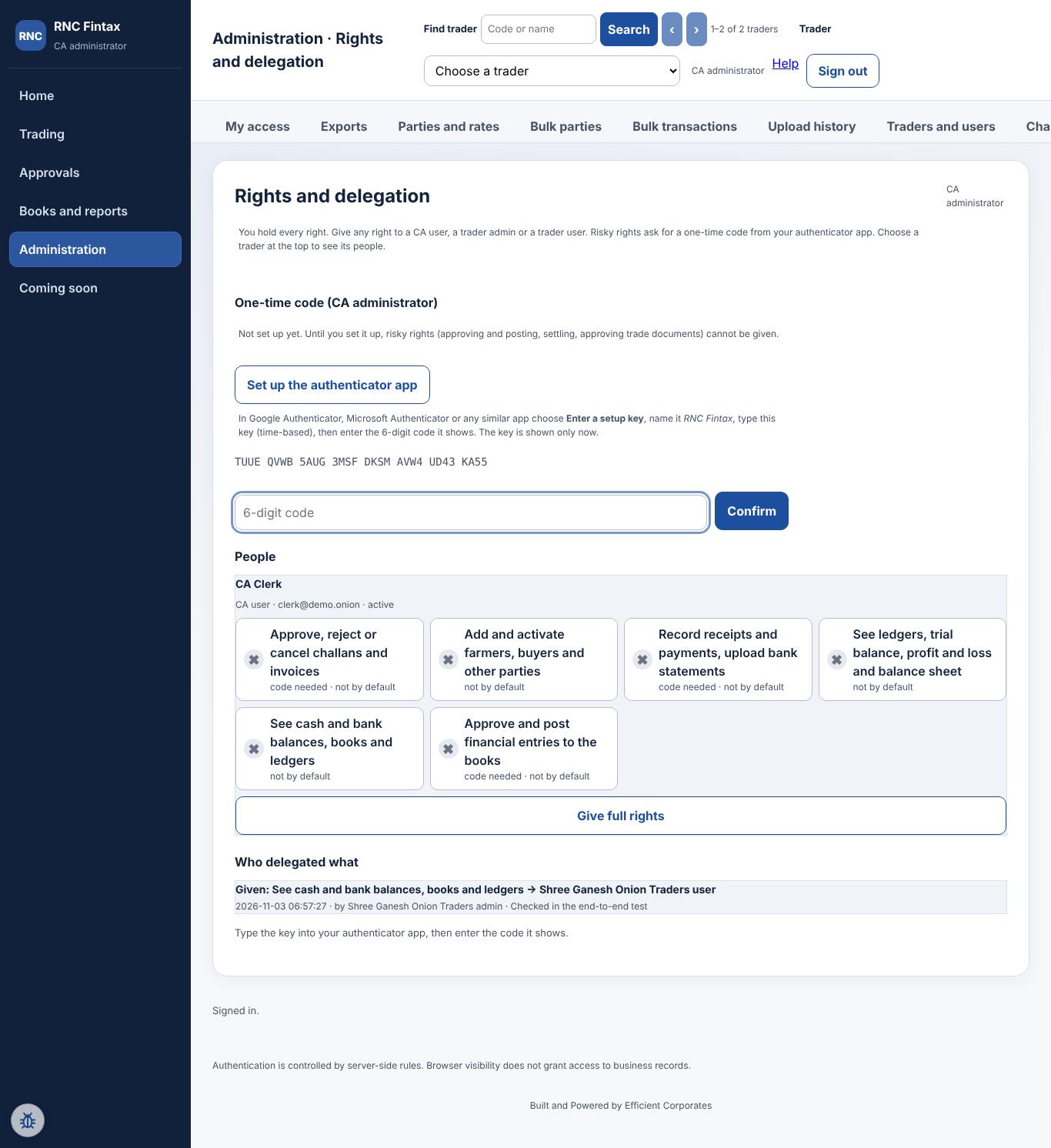
Example: a clerk who can post entries
Choose the CA user, tap Post entries (or Full rights for every applicable right), type the reason and the current code, and confirm. That clerk now sees Approvals and can post, including in bulk.
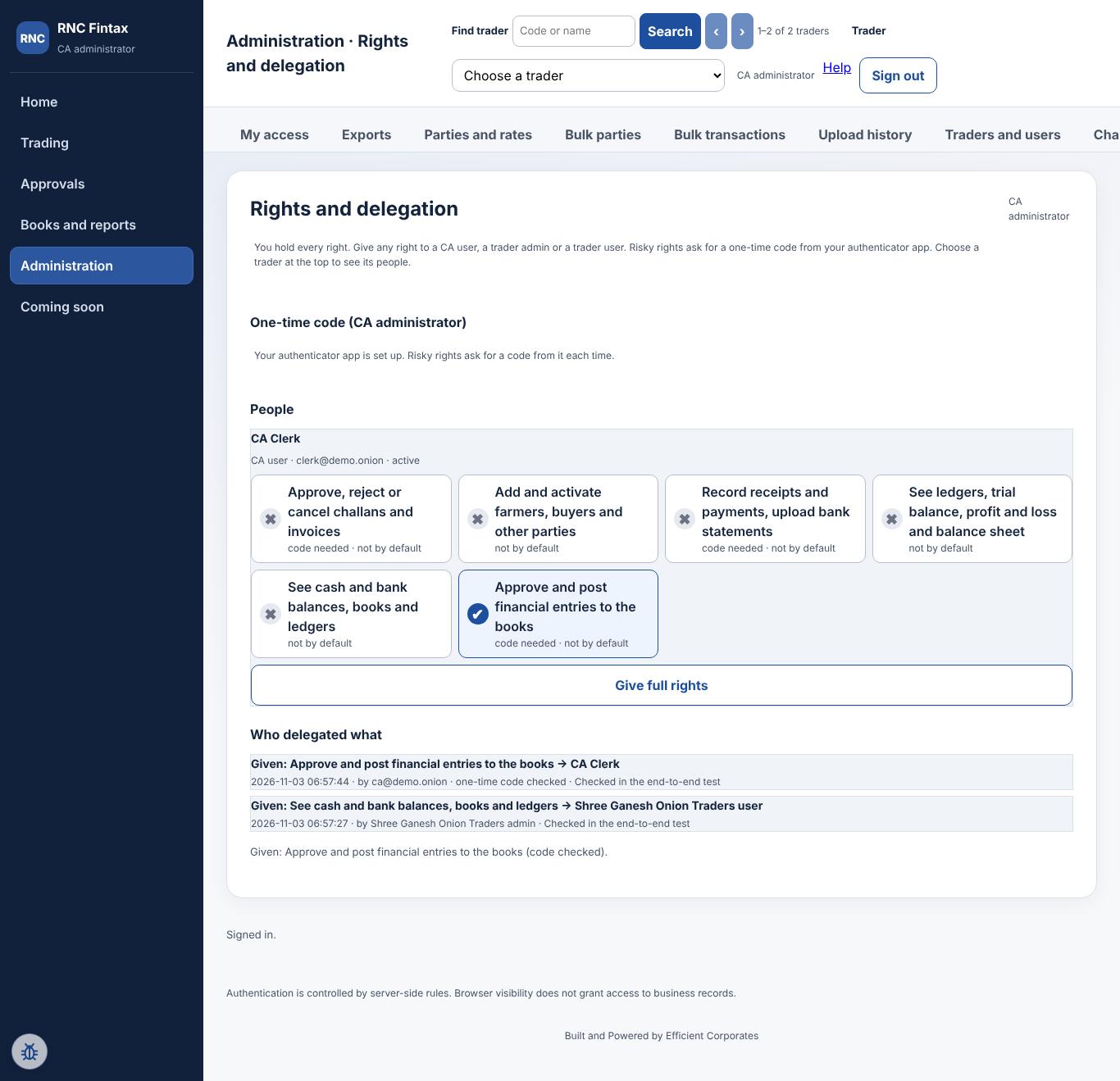
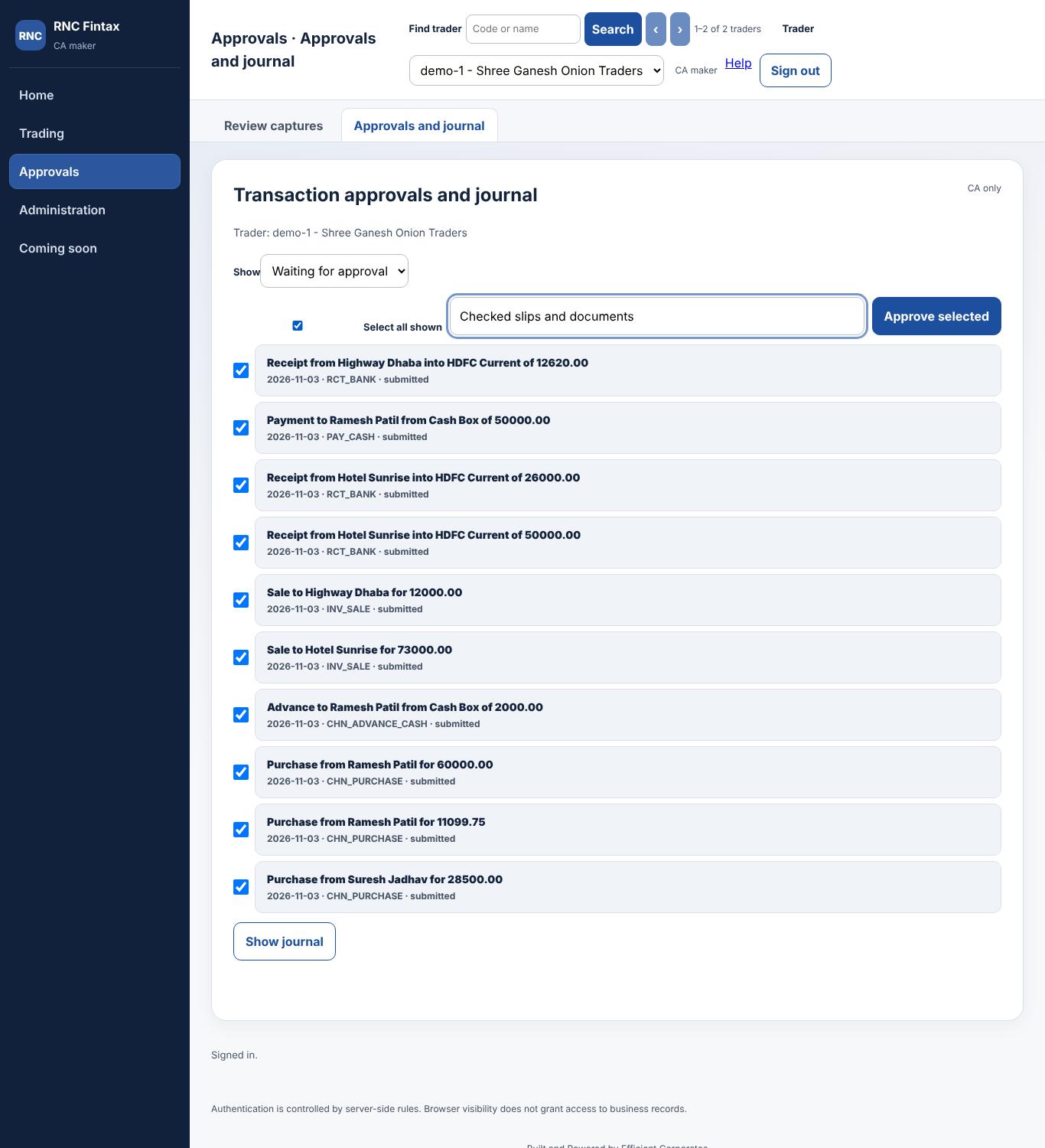
After posting, the ledgers, trial balance and profit and loss show the entries:
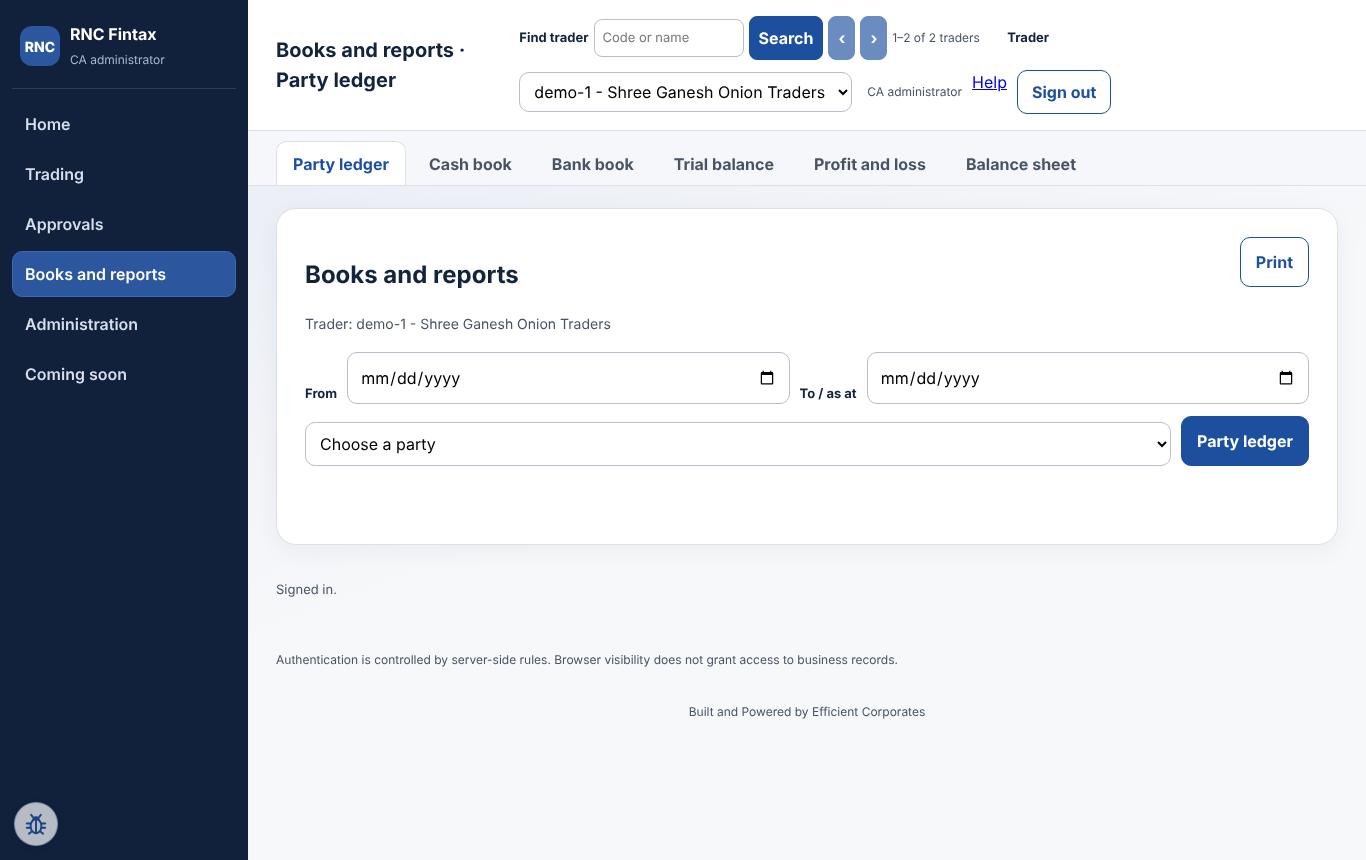
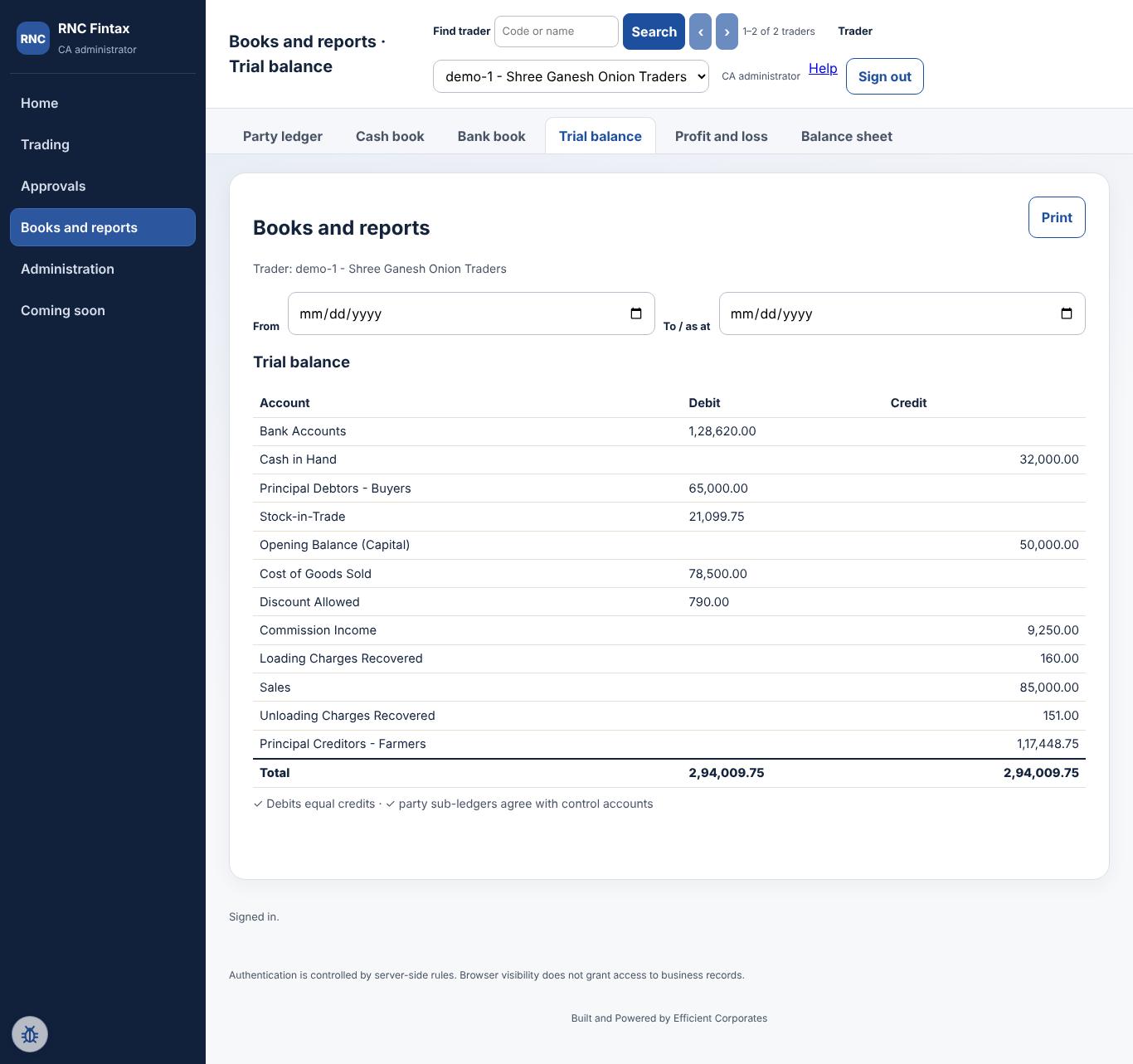
Chart of accounts and Event master (posting rules)
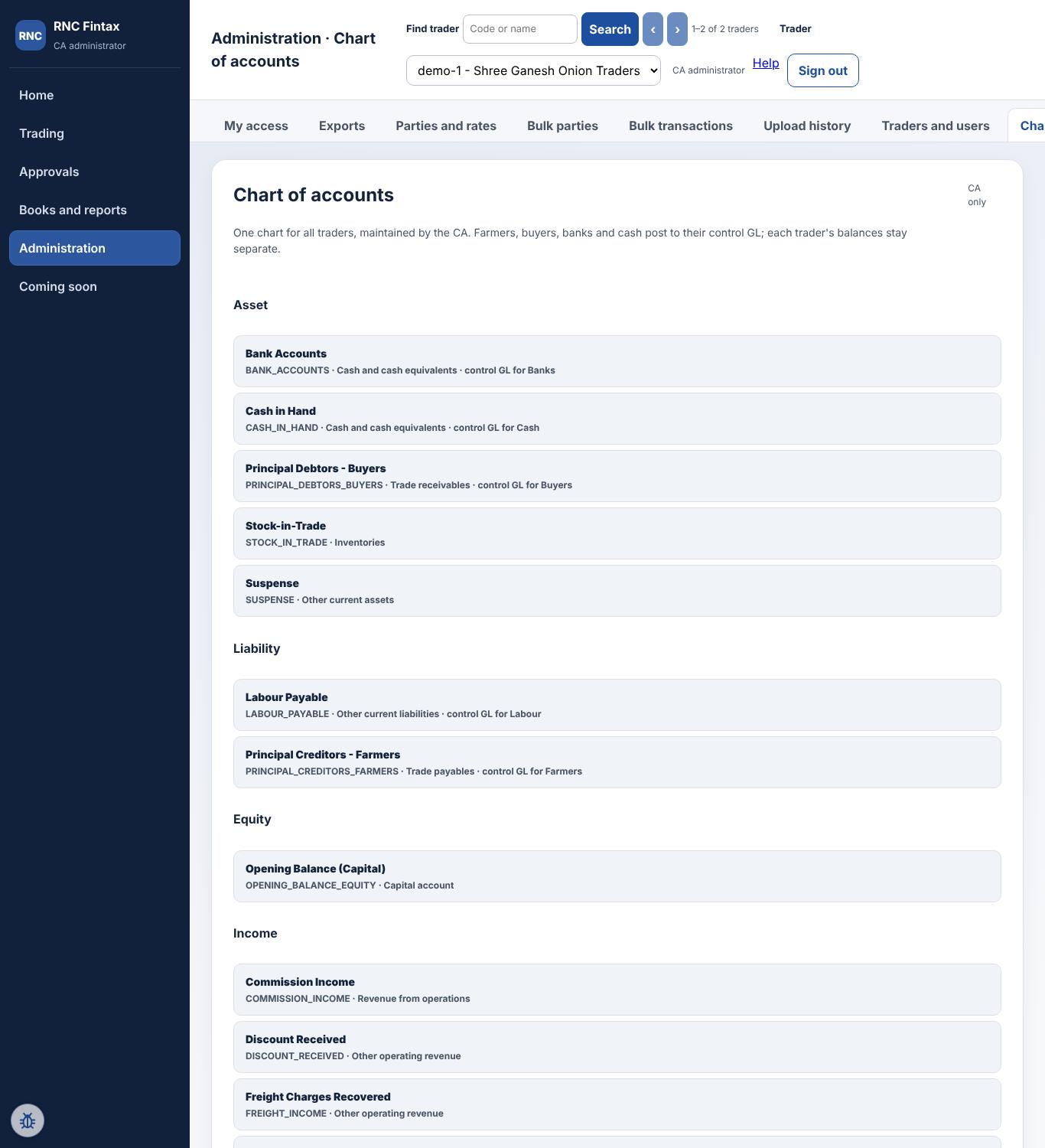
The chart lists every account, grouped as Asset, Liability, Equity, Income and Expense. Accounts are never deleted; an account can be made inactive. Add an account creates a new one.
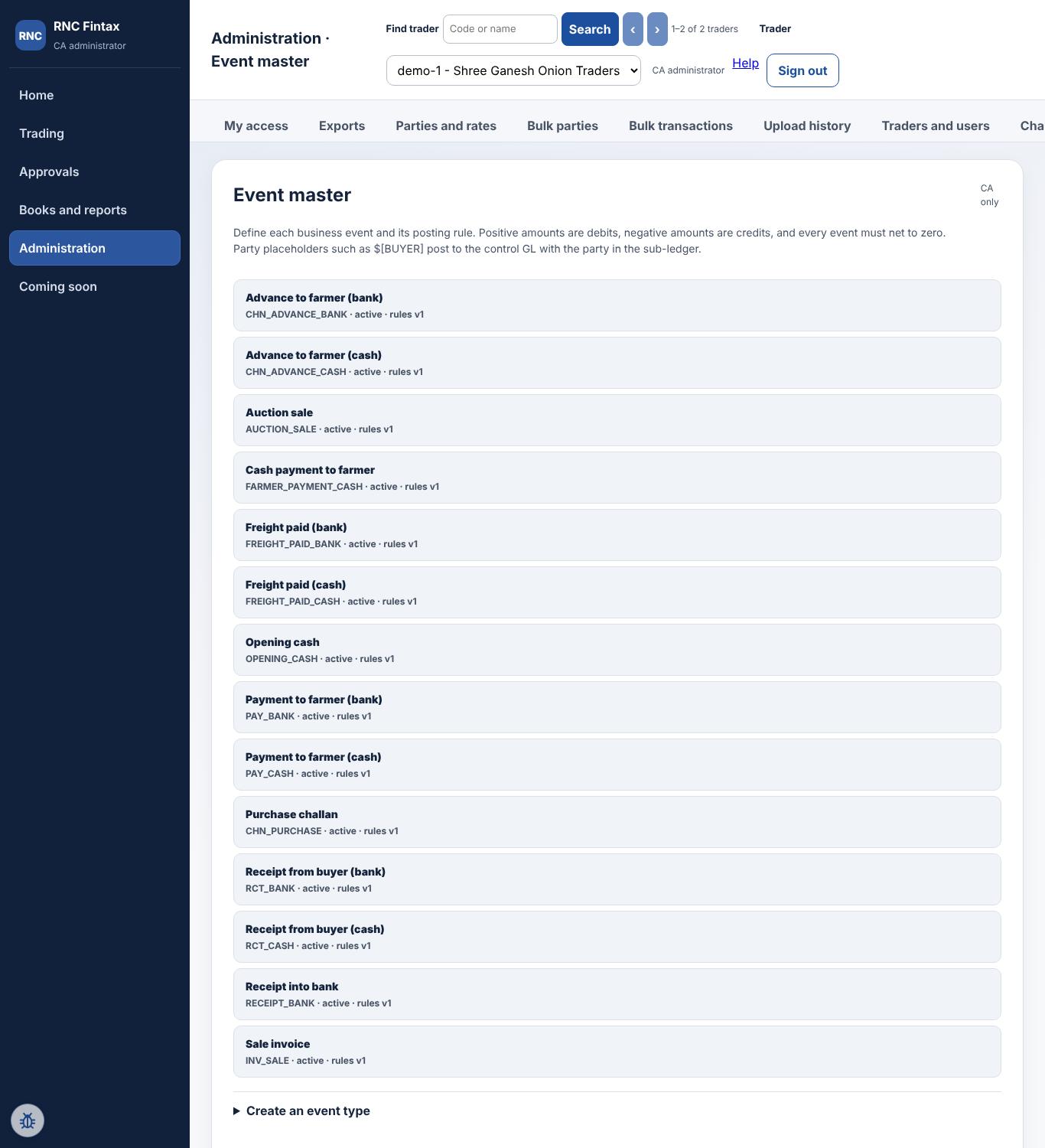
An event type says how a business event becomes debits and credits. Every change is saved as a new numbered version with a reason; entries already posted keep the version they used. Only the CA role can change rules. Money is in whole paise; every event must net to zero.
CA staff: the CA maker login
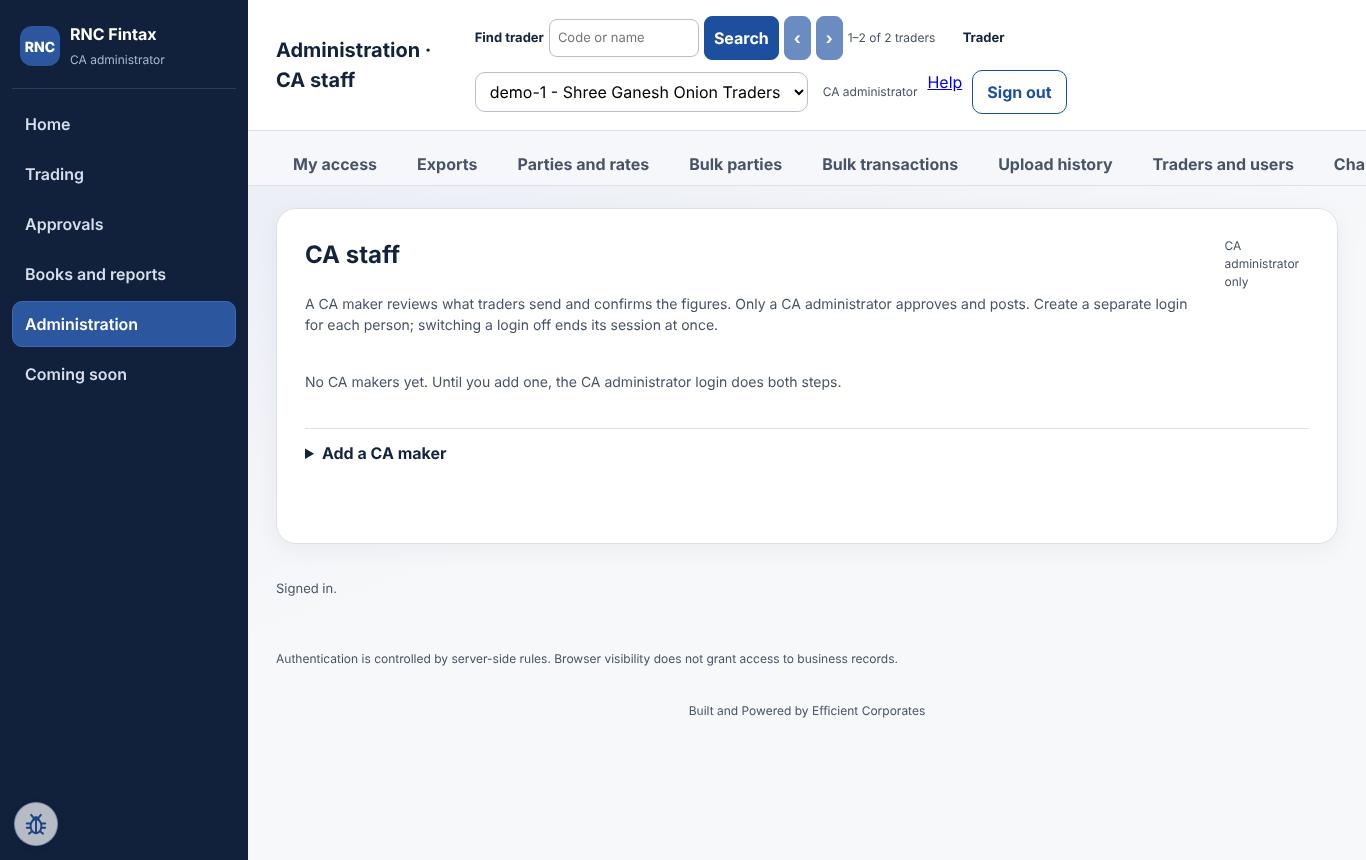
The CA administrator adds a CA maker (name, login ID, an initial password of at least 14 characters, and a reason). A CA maker reviews captures and confirms figures, and can read Trading, but cannot approve, reject, reverse, see the journal or books, change rules, or manage users. Switching a maker off ends their session at once.
Excel exports
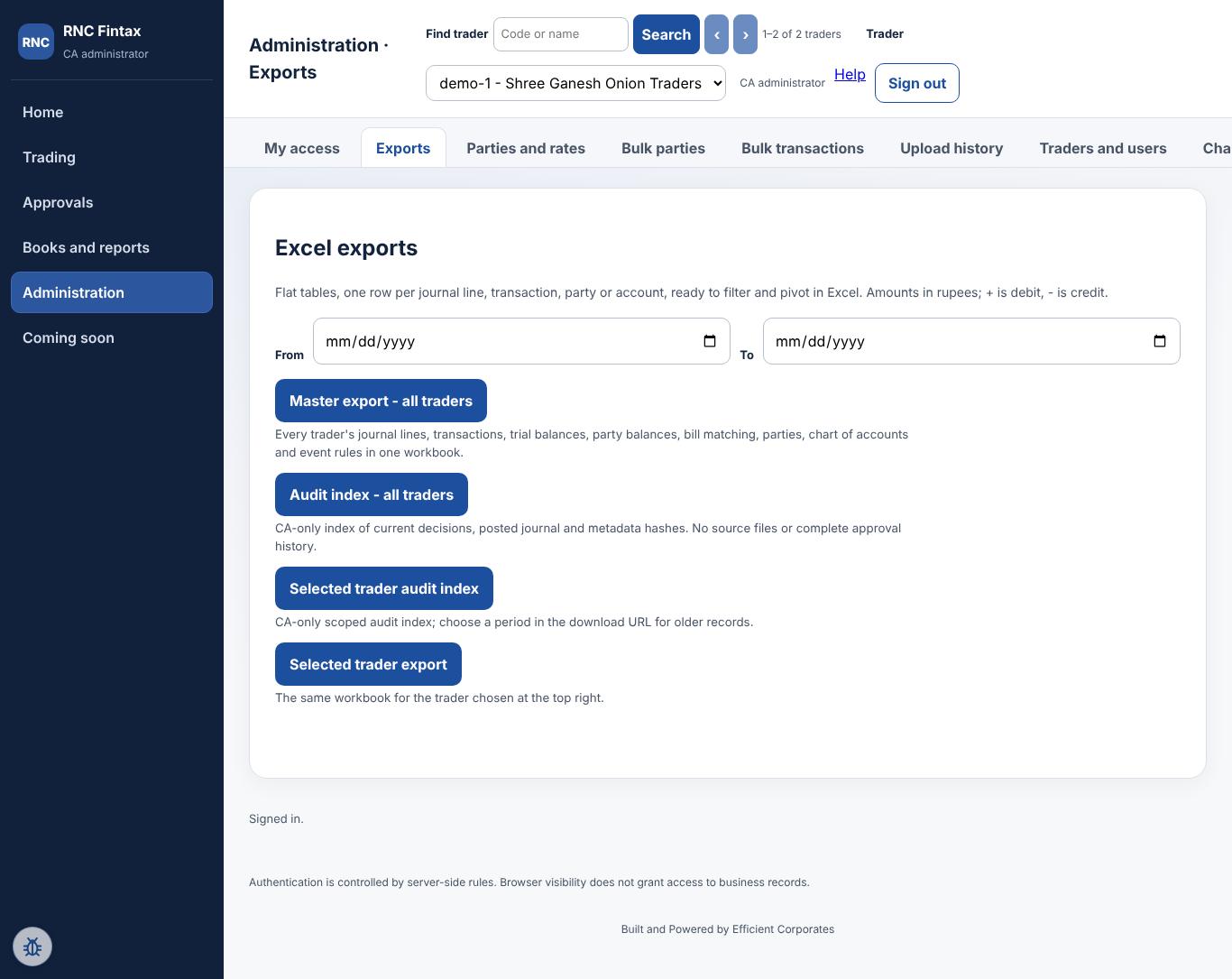
Download a workbook for one trader (ledgers, journal, transactions) or the CA master export across all traders. Traders can export their own books from the same screen.
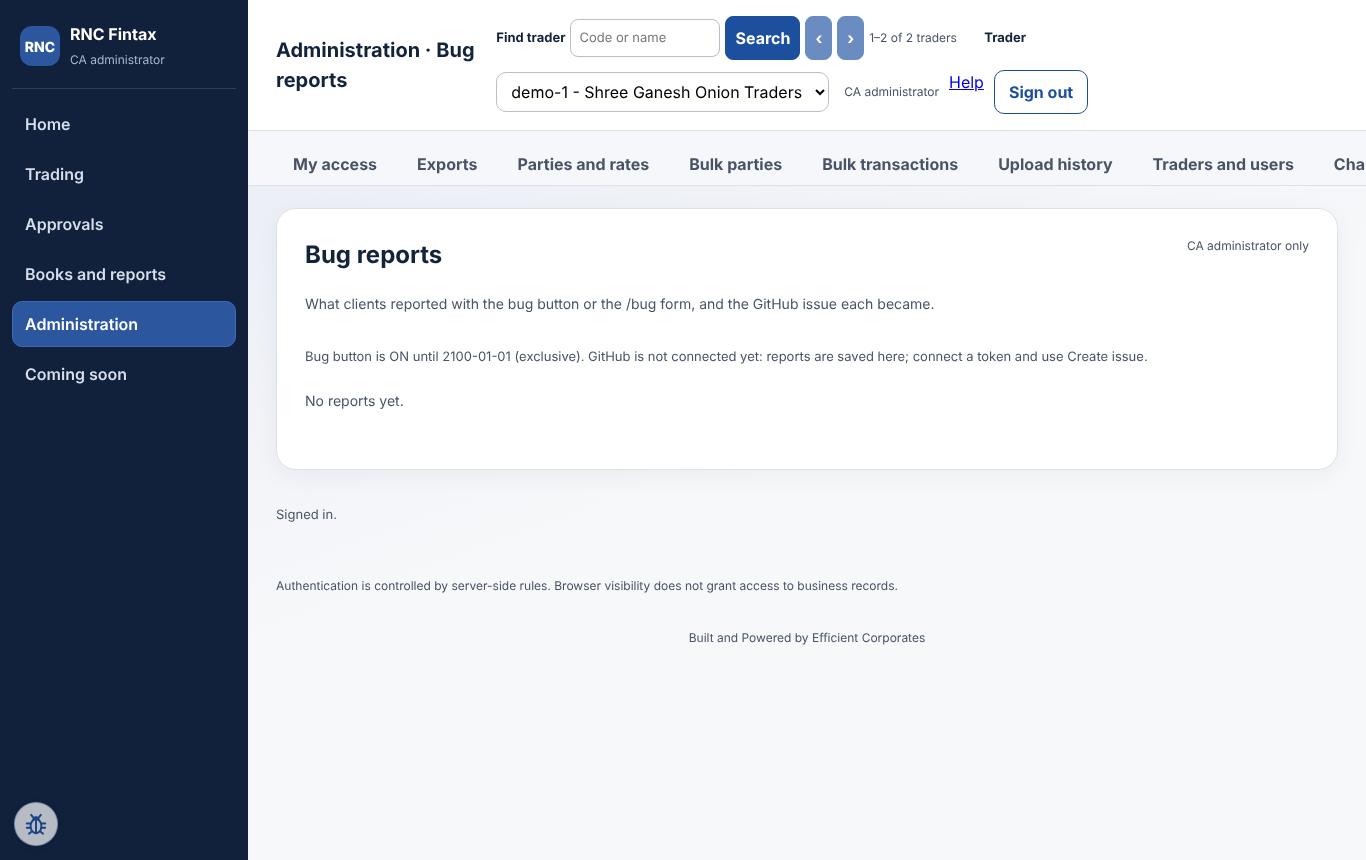
Bug button and bug reports
The CA administrator sees a small bug icon in the bottom-left corner of every screen during the launch-support period.

- Press it when something looks wrong. The last five seconds of clicks and server calls are attached automatically (never passwords, typed text or files).
- Describe what you expected and what happened, choose how serious it is, and press Send report.
- Reports are listed under Administration → Bug reports with the GitHub issue each became.
Traders and anyone who cannot sign in can use the public form at rncfintax.com/bug.
A worked example with figures
Two farmers' lots are sold to one buyer on one invoice.
| Line | Working | ₹ |
|---|---|---|
| Goods: 100 bags, 10,000 kg | 10,000 kg × ₹10 per kg | 1,00,000 |
| Commission | 5% of the goods only | 5,000 |
| Labour / loading | 100 bags × ₹2 | 200 |
| Freight charges | charged on the invoice | 8,800 |
| Other charges | 1,000 | |
| Invoice total (Bill of Supply, no GST) | 1,15,000 | |
What the CA's approval posts
| Account | Debit ₹ | Credit ₹ |
|---|---|---|
| Buyer (Principal Debtors – Buyers) | 1,15,000 | |
| Sales | 1,00,000 | |
| Commission income | 5,000 | |
| Loading charges recovered | 200 | |
| Freight charges recovered | 8,800 | |
| Other charges recovered | 1,000 | |
| Cost of goods sold (at the challans' purchase cost) | 1,00,000 | |
| Stock-in-trade (stock released) | 1,00,000 |
The two purchases had earlier put the same goods into stock and made the farmers payable. So the profit and loss shows both the sale and the cost of the goods sold, and the balance sheet shows only what is still unsold as stock. If the sale rate is higher than the purchase rate, the difference shows as a margin.
What the statuses mean
| You see | Meaning | Who acts next |
|---|---|---|
| Waiting for trader admin | Saved by a trader user; stock is recorded; nothing is in the books. | Trader admin approves or rejects. |
| Approved | The trader admin accepted it. A challan's stock can now be sold. | CA administrator posts the entry. |
| … with CA for posting | The accounting entry has been prepared and waits in the CA's queue. | CA administrator. |
| … posted in books | Posted. It is in the ledgers and reports and cannot be changed. | Nobody, unless it needs a reversal. |
| Rejected | Not accepted. Its stock is free again. The number is kept and never reused. | The user makes a new one if needed. |
| Cancelled | Withdrawn after being saved or approved. | If it was posted, the CA reverses the entry first. |
| reversed | The CA corrected a posted entry with an opposite entry. | None. |
FAQ: questions and troubleshooting
Quick answers to common questions. Use the search box to find a word such as advance or PERIOD_LOCKED.
Getting started and access
- How do I sign in?
- Open the site, press Sign in, and type your email and password. The CA administrator creates your login. Nobody else can reset it for you; ask the CA administrator.
- Can I use it on my phone like an app?
- Yes. On the sign-in page choose Install or Add to Home Screen in your phone's browser menu.
- I forgot my password.
- Ask the CA administrator to set a new one under Administration → Traders and users.
- Who can see my trader's data?
- Only people of your trader and the CA firm. A trader can never see another trader's data.
- Why can I not see some screens?
- Screens follow your rights. Ask the trader admin (or the CA administrator) to give you the right. See Rights and delegation.
- Is GST charged?
- No. Invoices are a Bill of Supply and carry no GST lines.
Challans, invoices and stock
- What is a challan?
- One farmer's arrival: one farmer, one challan (CHN). The goods go into stock and the farmer becomes payable.
- Can one invoice cover several challans or farmers?
- Yes. The invoice screen lists the challans with what is left on each; take any part from any of them.
- I cannot see a farmer or buyer in the list.
- Only active parties appear. Ask the trader admin to add or activate them under Administration → Parties and rates.
- It says TRADE_STOCK_EXCEEDED.
- You are selling more bags or kilograms than are left on that challan. Check the figure under left.
- It says TRADE_CHALLAN_NOT_AVAILABLE.
- The challan is not approved yet, or it was rejected or cancelled.
- Can I change a challan or invoice after saving?
- No. Reject or cancel it and make a new one. Numbers are never reused.
- I saved something twice by mistake.
- Reject or cancel the duplicate. Documents are never deleted.
- Is the sale rate the same as the purchase rate?
- Normally yes (it is filled from the challan, and you may edit it). For own stock it may differ.
- What is the freight on an invoice?
- Freight recovered from the buyer is income. The actual freight you pay is a separate expense.
- The voice or photo filled in the wrong figure.
- Always check the highlighted fields and every figure before saving. You can correct anything on the form.
- My challan is still on the phone with no number.
- It was saved offline and has not been sent. Open the app with a network connection; it sends by itself.
Money: receipts, payments and bank
- How do I record money received from a buyer?
- Trading → Receipts and payments, choose receipt, the buyer, amount and bank or cash. See Receipts and payments.
- Which invoice does the money settle?
- The ones you tick first, then the oldest. The preview shows it before you save.
- The buyer paid less and we agreed to close it.
- Tick full and final; the shortfall is booked as discount allowed.
- I paid more than was due.
- The extra stays on account (an advance) and is used on the next settlement.
- What happens to an advance given to a farmer?
- It stays as the farmer's advance until a payment uses it against challans.
- It says CHOSEN_MORE_THAN_TOTAL.
- The amounts you chose for the ticked documents add up to more than the money you are settling. Lower them or raise the amount.
- Why was a bank line refused as a duplicate?
- That line or the whole file was uploaded before. Nothing was lost.
- A bank line is not ours.
- Ignore it; you can unignore it later.
Approvals and the books
- Why do the books not show my invoice yet?
- It has been saved, but the entry waits for the trader admin and then for the CA to post it. See What the statuses mean.
- It says TRADE_RULES_NOT_INSTALLED when I approve.
- The CA administrator has not pressed Install trade setup yet.
- What does Install (or Update) trade setup do?
- It creates the accounts and posting rules the trading screens need, once. It is safe to press again after an upgrade: it adds only what is missing.
- It says TRADE_REVERSE_FIRST.
- The entry was already posted. The CA must reverse it before the document is cancelled.
- It says PERIOD_LOCKED.
- The CA has closed that month. It applies when you save a challan, invoice, own-stock move or receipt/payment dated in that month, and when an entry is approved. Ask the CA administrator to change the lock, or use a date in an open month.
- Can many entries be posted together?
- Yes, tick them on Approvals and press Approve selected (up to 50).
Rights and security
- What is the 6-digit code?
- A code from an authenticator app, asked when the CA administrator gives a risky right. See Delegating rights.
- Can a trader admin give more rights than they have?
- No. A trader admin can give a trader user only rights the trader admin holds.
- Can I see who gave whom what?
- Yes: Who delegated what on the Rights and delegation screen lists every change, with who, when and why.
- Can the CA give a right and later take it back?
- Yes. Taking a right back needs no code and is recorded too.
Support
- The page does not move on my phone.
- Reload the page or reinstall the app from the sign-in page. If it still happens, tell the CA administrator, who can use the bug button.
- Where is the bug button?
- Bottom left of the CA administrator's screen. It is not shown to other roles.
- Something here is wrong or missing.
- Tell the CA administrator. This manual is updated with each release.
Glossary
- Challan (CHN)
- The purchase document for one farmer's arrival. One arrival is one lot.
- Invoice (INV)
- The sale document to one buyer, built from one or more challans. Each challan is one line. A Bill of Supply with no GST.
- Lot
- The goods of one farmer arrival. Stock always shows the lot's challan and farmer.
- Commission
- The trader's fee, charged to the buyer on the goods amount only (5% by default, editable), rounded down to the whole rupee.
- Loading
- A per-bag charge on the invoice (₹2 by default, editable).
- Posting
- Writing an approved entry into the books. Done only by the CA administrator.
- Journal
- The list of posted entries. Every entry's debits equal its credits.
- Reversal
- A corrected opposite entry. Posted entries are never edited or deleted.
- Event type
- A posting rule kept by the CA: how a business event becomes debits and credits.
- Receivable / payable
- What buyers owe the trader, and what the trader owes farmers.
- Paise
- Amounts are stored in whole paise, so there is no hidden rounding.
Coming soon
These parts are agreed with the client but are not yet built:
- The client's format for the invoice and challan PDFs (today's PDFs use a simple interim layout).
- Further reports such as ageing by days and a stock valuation report.
This manual is updated whenever a screen changes. The screenshots are made by a script from the demonstration system and refreshed with every release.
No section matches your search. Try fewer words, or one of: challan, invoice, stock, approve, ledger, password.